Photoshop Paint Bucket Tool
Photoshop Paint Bucket Tool: Your Guide to Instant Color Fills
Welcome to the ultimate guide on one of Photoshop's most essential yet often overlooked features: the Photoshop Paint Bucket Tool. If you've ever needed to quickly flood an area with a solid color, eliminate distracting backgrounds, or just block out large sections for a digital painting, this tool is your best friend.
While often overshadowed by advanced tools like the Gradient or the Brush, the Paint Bucket Tool offers unparalleled speed and efficiency when dealing with specific tasks. This article will break down exactly how to find it, how to master its tricky settings (especially tolerance!), and how to integrate the Paint Bucket Tool into your everyday Photoshop workflow, making your editing life significantly easier.
Ready to master the art of the instant fill? Let's dive in!
What Exactly is the Photoshop Paint Bucket Tool?
At its core, the Photoshop Paint Bucket Tool is designed to fill contiguous or non-contiguous sections of an image with your current foreground color. Think of it like pouring a bucket of paint onto a canvas, but with digital precision—it only spills into areas based on color similarity.
Unlike the standard Brush Tool, which requires manual application, the Paint Bucket works instantaneously. When you click an area, it samples the color of the pixel you clicked and attempts to fill all adjacent pixels that fall within a defined similarity range. This range is controlled by a crucial setting called "Tolerance," which we will discuss in depth shortly.
Essentially, this tool allows you to replace large blocks of color in seconds, making it invaluable for designers, illustrators, and photo retouchers who require speed and efficiency in their coloring process.
Where to Find the Paint Bucket Tool (And Its Close Cousin)
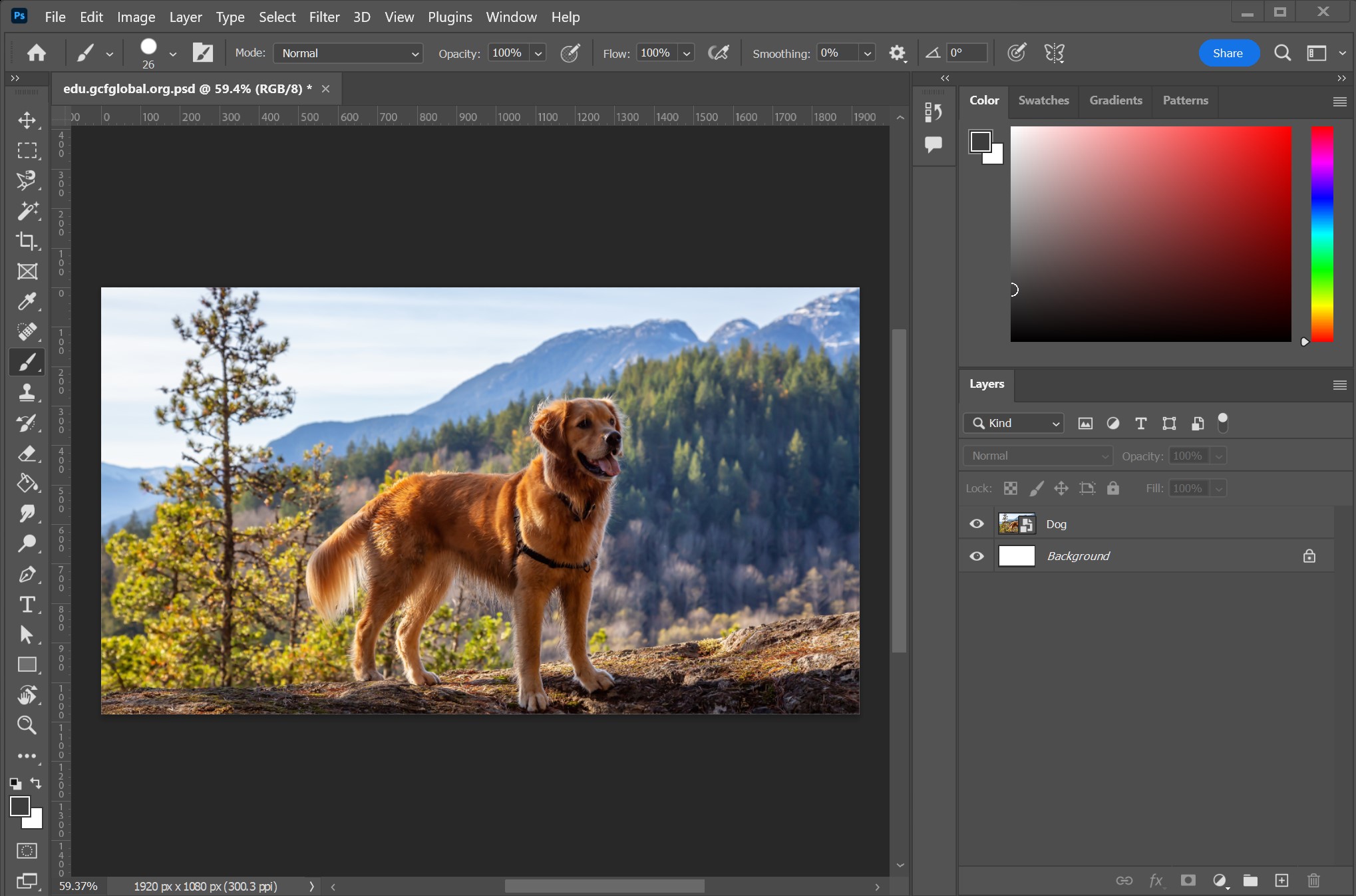
Finding the Photoshop Paint Bucket Tool can sometimes be a bit confusing for beginners because it shares real estate with another, more frequently used tool: the Gradient Tool. Photoshop groups tools that serve related or similar functions together in the toolbar.
To locate the tool, look for the icon that resembles a small bucket spilling paint. If you see the Gradient icon instead, simply right-click (or click and hold) on that icon. A flyout menu will appear, giving you the option to select either the Gradient Tool or the Paint Bucket Tool.
The easiest way to switch to the tool, regardless of what is currently visible, is by using its designated keyboard shortcut. The shortcut for both the Paint Bucket and Gradient Tool is the letter "G". If you press 'G' and the Gradient Tool appears, press Shift+G to cycle between the grouped tools until the Paint Bucket icon is selected.
Key Settings and Options You Need to Know
Once you've selected the Paint Bucket, look up at the Options Bar at the top of your Photoshop window. This bar dictates how the tool performs. Understanding these settings is vital for getting the results you want, especially if you are dealing with complex images.
1. Fill Type: Foreground vs. Pattern
The first dropdown menu usually lets you choose between "Foreground" and "Pattern." If set to Foreground, the bucket fills the area with the color currently active in your foreground color swatch. If you select "Pattern," the tool will fill the area using a seamless texture or image chosen from the pattern presets.
2. Tolerance: The Deciding Factor
Tolerance is arguably the most critical setting. It determines the sensitivity of the fill. The value ranges from 0 to 255. A low tolerance (e.g., 10) means the tool will only fill pixels that are very close in color to the sampled pixel. A high tolerance (e.g., 100) means it will include a much broader range of similar colors, often spilling into unintended areas if not used carefully.
3. Anti-alias
This option smoothes the jagged edges of the filled area. If you are working on high-resolution images or digital paintings, keeping Anti-alias checked generally produces a cleaner, more professional result by softening the transition between the new color and the surrounding pixels.
4. Contiguous
The Contiguous checkbox changes the fundamental way the Paint Bucket Tool operates:
- Checked (Contiguous): The fill will only spread to adjacent pixels that are within the tolerance range. If there is a break or gap in the color, the fill will stop at that boundary. This is ideal for filling specific, enclosed shapes.
- Unchecked (Non-Contiguous): The fill will apply the color to all pixels on the active layer that fall within the tolerance range, regardless of where they are located on the canvas. This is perfect for quickly removing scattered dots of a specific color, even if they aren't touching.
Practical Applications: When Should You Use It?
While the Paint Bucket Tool seems simple, it can be utilized in numerous ways to speed up various design and editing tasks. Knowing when to choose this tool over others is a key part of becoming proficient in Photoshop.
Here are some of the most common and effective uses:
- Filling Flat Shapes: For geometric designs, logos, or illustrations that require areas of perfectly flat, solid color, the Paint Bucket is the fastest way to get the job done after defining your selection.
- Quick Background Replacement: If you have an image with a solid or nearly solid background color (like a white backdrop), you can easily click the background to replace it instantly with a new color or pattern.
- Coloring Line Art: When working with scanned line art or black and white comics, ensuring your Contiguous setting is checked allows you to tap inside the lines to fill large sections quickly without bleeding over the borders.
- Creating Color Masks: You can use the tool to block out sections of a layer mask with black or white to quickly hide or reveal large portions of an image.
Mastering Tolerance: The Secret Sauce of Precise Filling
Let's circle back to Tolerance because it is the single setting that determines whether your use of the Photoshop Paint Bucket Tool is successful or results in a messy fill. Understanding how to set this value based on your image complexity is essential for precise editing.
If you set the Tolerance too low (e.g., 5-15), the tool will only fill pure, uniform colors. This is great for digital art with sharp boundaries but often leaves splotches on photographs where colors naturally blend and vary slightly.
Conversely, setting the Tolerance too high (e.g., 150-255) means the fill will ignore subtle color differences, often spilling past intended boundaries and filling shadows, highlights, or even adjacent objects that share similar tones.
The best practice is usually to start with a medium tolerance (around 32) and adjust up or down slightly. If the fill is incomplete, increase the tolerance by 5-10 points. If the fill bleeds over edges, reduce it. It's an iterative process that improves with practice.
Paint Bucket vs. Gradient Tool vs. Color Fill Layer
In Photoshop, there are several ways to add color. When should you specifically rely on the Paint Bucket Tool instead of its alternatives?
The Gradient Tool is used when you need a smooth, linear transition between two or more colors. It is not suitable for applying a single, uniform color fill to a specific, complex area defined by color boundaries.
A Solid Color Fill Adjustment Layer is a non-destructive method used to flood an entire layer or selection with color. While this is excellent for large background areas or creating overlays, it doesn't offer the speed or convenience of clicking a textured area and having the color automatically respect the boundaries based on similarity—that's where the Paint Bucket shines.
Use the Paint Bucket when you need a quick, targeted application of solid color that respects existing color boundaries and is influenced by the Tolerance setting. It excels at local color replacements on rasterized layers.
Conclusion: Mastering the Simple Power of the Paint Bucket
The Photoshop Paint Bucket Tool might seem straightforward, but its power lies in its efficiency and customization through settings like Tolerance and Contiguous. By understanding where to find it (remember the 'G' shortcut!) and how its options work, you can dramatically cut down the time spent on repetitive color filling tasks.
Whether you are cleaning up a scanned drawing, replacing a sky color, or just speeding up your digital illustration process, mastering the Paint Bucket is a fundamental skill. Take some time to play with the Tolerance slider on various images, and you'll quickly realize how essential this humble tool truly is to your Photoshop toolkit. Happy editing!
Frequently Asked Questions (FAQ) about the Photoshop Paint Bucket Tool
- What is the keyboard shortcut for the Photoshop Paint Bucket Tool?
- The keyboard shortcut is "G". If "G" opens the Gradient Tool, press Shift + G to cycle through the grouped tools until the Paint Bucket is active.
- Why does the Paint Bucket Tool fill the entire canvas instead of just the area I clicked?
- This usually happens because the "Contiguous" option is unchecked in the options bar. When Contiguous is unchecked, the tool will fill all pixels on the active layer that are within the specified Tolerance, regardless of whether they are touching the clicked area.
- How does the Tolerance setting affect the Paint Bucket Tool?
- Tolerance (0-255) dictates how similar the adjacent colors must be to the color you click for them to be included in the fill. A higher tolerance includes a wider range of colors; a lower tolerance is stricter, only filling colors that are nearly identical.
- Can I fill an area with a pattern using the Paint Bucket Tool?
- Yes! In the options bar at the top, change the "Fill" type from "Foreground" to "Pattern." You can then select any installed pattern preset to fill the area instead of a solid color.
- Why is the Paint Bucket Tool greyed out or unavailable?
- The Paint Bucket Tool only works on rasterized layers. If you are trying to use it on a Smart Object or a Text Layer, it will be unavailable. You must rasterize the layer first (Layer > Rasterize > Layer) or create a new, empty raster layer above your current content.
Photoshop Paint Bucket Tool
Photoshop Paint Bucket Tool Wallpapers
Collection of photoshop paint bucket tool wallpapers for your desktop and mobile devices.
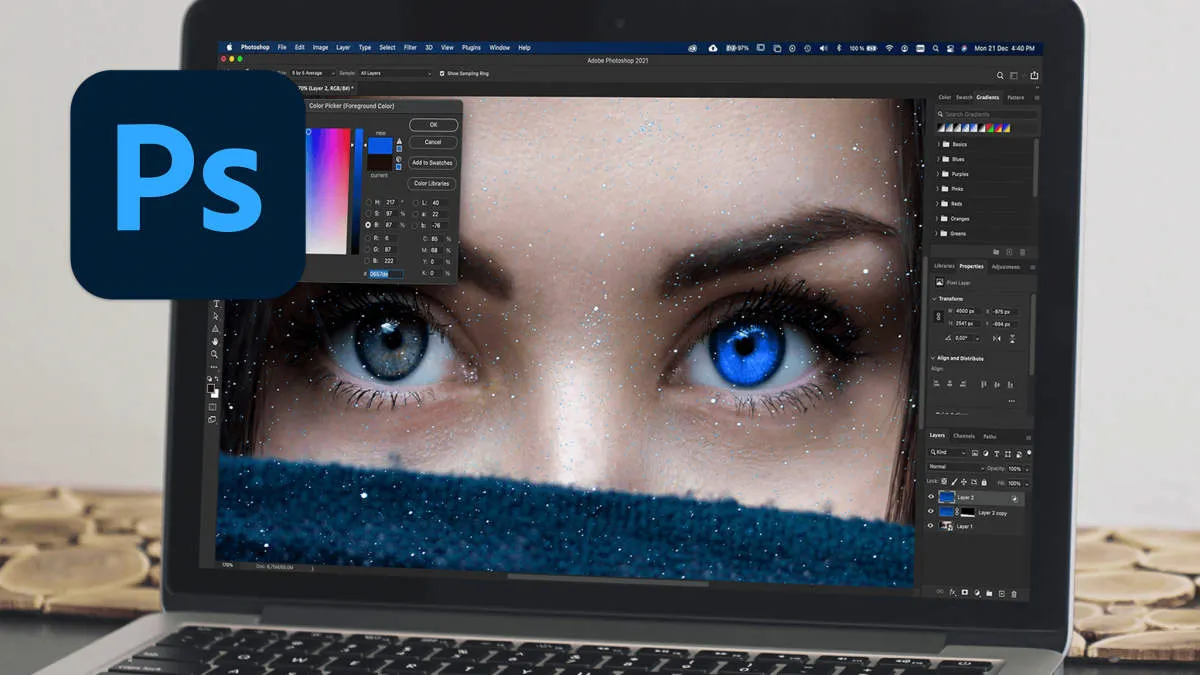
Spectacular Photoshop Paint Bucket Tool Landscape for Your Screen
Find inspiration with this unique photoshop paint bucket tool illustration, crafted to provide a fresh look for your background.
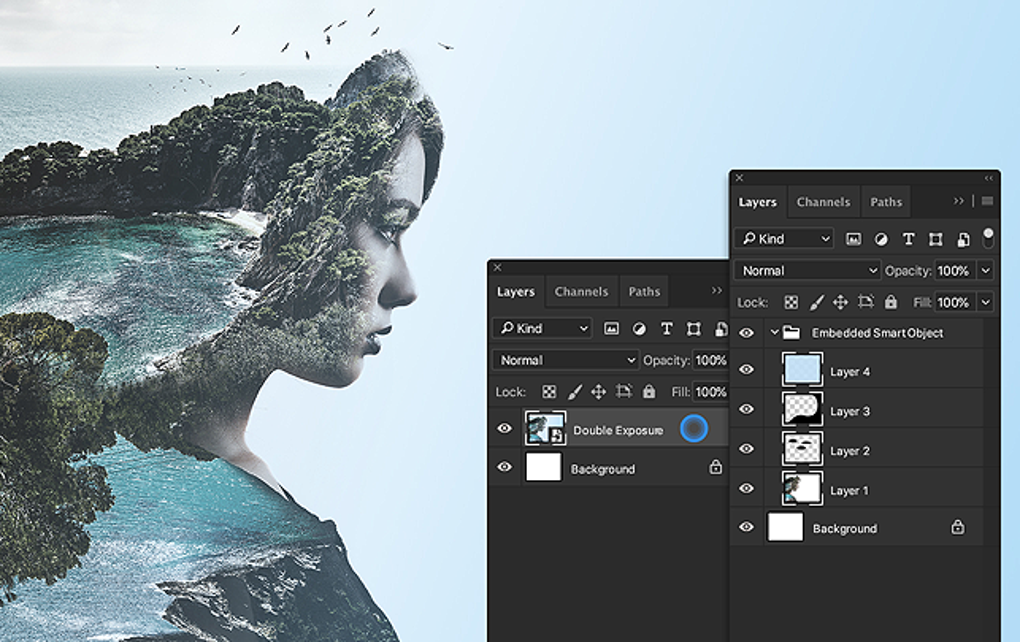
Spectacular Photoshop Paint Bucket Tool Scene for Your Screen
Find inspiration with this unique photoshop paint bucket tool illustration, crafted to provide a fresh look for your background.
Mesmerizing Photoshop Paint Bucket Tool Wallpaper Nature
Explore this high-quality photoshop paint bucket tool image, perfect for enhancing your desktop or mobile wallpaper.
Dynamic Photoshop Paint Bucket Tool Moment Concept
Find inspiration with this unique photoshop paint bucket tool illustration, crafted to provide a fresh look for your background.
Spectacular Photoshop Paint Bucket Tool Scene in HD
A captivating photoshop paint bucket tool scene that brings tranquility and beauty to any device.
Detailed Photoshop Paint Bucket Tool Picture Collection
Transform your screen with this vivid photoshop paint bucket tool artwork, a true masterpiece of digital design.
Mesmerizing Photoshop Paint Bucket Tool Capture for Your Screen
Transform your screen with this vivid photoshop paint bucket tool artwork, a true masterpiece of digital design.
Lush Photoshop Paint Bucket Tool View in 4K
Immerse yourself in the stunning details of this beautiful photoshop paint bucket tool wallpaper, designed for a captivating visual experience.
Stunning Photoshop Paint Bucket Tool Background for Desktop
A captivating photoshop paint bucket tool scene that brings tranquility and beauty to any device.

High-Quality Photoshop Paint Bucket Tool Scene in HD
Transform your screen with this vivid photoshop paint bucket tool artwork, a true masterpiece of digital design.

High-Quality Photoshop Paint Bucket Tool Scene for Mobile
Transform your screen with this vivid photoshop paint bucket tool artwork, a true masterpiece of digital design.
Artistic Photoshop Paint Bucket Tool Moment for Mobile
Find inspiration with this unique photoshop paint bucket tool illustration, crafted to provide a fresh look for your background.
Exquisite Photoshop Paint Bucket Tool Image for Mobile
A captivating photoshop paint bucket tool scene that brings tranquility and beauty to any device.
Detailed Photoshop Paint Bucket Tool Scene Nature
Experience the crisp clarity of this stunning photoshop paint bucket tool image, available in high resolution for all your screens.
Gorgeous Photoshop Paint Bucket Tool Moment Nature
Immerse yourself in the stunning details of this beautiful photoshop paint bucket tool wallpaper, designed for a captivating visual experience.
Dynamic Photoshop Paint Bucket Tool Picture for Your Screen
Immerse yourself in the stunning details of this beautiful photoshop paint bucket tool wallpaper, designed for a captivating visual experience.
Artistic Photoshop Paint Bucket Tool Abstract Nature
This gorgeous photoshop paint bucket tool photo offers a breathtaking view, making it a perfect choice for your next wallpaper.
Detailed Photoshop Paint Bucket Tool Wallpaper Digital Art
Transform your screen with this vivid photoshop paint bucket tool artwork, a true masterpiece of digital design.
Artistic Photoshop Paint Bucket Tool Photo in HD
This gorgeous photoshop paint bucket tool photo offers a breathtaking view, making it a perfect choice for your next wallpaper.
:max_bytes(150000):strip_icc()/photoshopwelcomescreen-b9eee1516703467f93ef35fa984a6267.jpg "Dynamic Photoshop Paint Bucket Tool Photo Art")
Dynamic Photoshop Paint Bucket Tool Photo Art
Immerse yourself in the stunning details of this beautiful photoshop paint bucket tool wallpaper, designed for a captivating visual experience.
Download these photoshop paint bucket tool wallpapers for free and use them on your desktop or mobile devices.