How To Remove Paint Edits From Pictures
How To Remove Paint Edits From Pictures: A Simple Guide
We've all been there. You quickly annotate a picture, perhaps adding an arrow or scribbling over a face using a basic paint tool, only to immediately regret it. Maybe you accidentally saved the file over the original, or perhaps you realized the edits look far less professional than you intended. Don't worry, you are not alone in seeking solutions on How To Remove Paint Edits From Pictures without completely losing the underlying image quality.
Removing digital paint or unwanted annotations can range from incredibly simple to surprisingly complex, depending on the software used and, crucially, whether you still have access to the original, unedited file. This guide will walk you through the most effective methods to reclaim your photograph and erase those digital mishaps.
Assessing the Damage: Is Your Original Image Salvageable?
Before you dive into complex editing software, the first step in learning How To Remove Paint Edits From Pictures is determining the permanence of the edit. Did you simply close the file without saving, or did you flatten the image and overwrite the original version?
If you have a backup of the original image, stop reading this guide right now and use the backup! However, if the digital paint is permanently saved into the image file (a destructive edit), you will need specialized tools to blend the affected area back into the background.
The Two Types of Paint Edits
Understanding how the paint was applied can dictate your recovery strategy. Most basic paint edits fall into two categories:
- Layered Edits: This occurs in advanced software (like Adobe Photoshop or GIMP) where annotations are placed on a separate layer. If the paint is on its own layer, you simply delete the layer. This is the easiest fix.
- Flattened/Destructive Edits: This happens when you use basic tools like Microsoft Paint, standard phone editors, or when you save a layered image as a JPG, merging all edits directly into the pixels of the original photo. This requires sophisticated pixel manipulation.
For the majority of users struggling to remove paint edits, the issue is typically a destructive, flattened edit. We will focus primarily on solving this problem.
Using Software to Undo Paint Edits
When the paint is baked into the image, we need tools that can intelligently sample surrounding pixels and use them to cover the unwanted mark. You will generally need a raster graphics editor for this, such as Photoshop, GIMP (a free alternative), or even robust mobile apps.
Method 1: The Undo/History Panel (The Immediate Fix)
If you made the paint edit recently and the file is still open (or if the application saves a history log), you might be able to simply go back a step. This is the fastest way to remove paint edits from pictures.
- Using Ctrl+Z (or Cmd+Z on Mac): Try hitting the universal undo shortcut immediately after the mistake.
- Checking the History Panel: In advanced editors, locate the History panel (often found under the 'Window' menu). Scroll up the list of actions until you find the state right before the paint was applied.
- Reverting: Some simple editors have a "Revert to Last Saved" option if you haven't saved the file since making the edit.
If the file has been closed, saved, and reopened, the history is likely gone, and you must move on to manual restoration.
Method 2: The Healing and Cloning Approach (The Manual Fix)
When dealing with destructive edits, you need to trick the software into replacing the painted area with surrounding texture. The two primary tools for this are the Spot Healing Brush and the Clone Stamp Tool.
The Healing Brush is excellent for small, simple marks on consistent backgrounds, while the Clone Stamp gives you precise control over which pixels you are sampling.
Mastering the Clone Stamp Tool
The Clone Stamp is the workhorse for manual digital restoration. It works by copying a chosen source area and painting that copied texture over the target area (the paint mark). This takes time, patience, and careful sampling.
Here is a step-by-step process for using the Clone Stamp to effectively remove paint edits from pictures:
- Select the Tool: Find the Clone Stamp Tool (often looks like a rubber stamp icon) in your editing software's toolbar.
- Adjust Brush Settings: Ensure the brush hardness is set low (around 20-50%) to allow for softer blending, especially if you are working on areas with slight gradients.
- Set the Source Point: Hold down the Alt key (Option on Mac) and click on a clean area of the image *right next* to the paint edit. This area should look identical to what should be underneath the mark.
- Paint Over the Edit: Release the Alt key and begin painting over the unwanted paint mark. The cloned texture will replace the paint.
- Re-sample Frequently: Continuously reset your source point (Alt+Click) as you move across the edit, especially if the background texture changes (e.g., moving from a cheek to a forehead, or from grass to sky).
Avoid using one single sample point for large areas, as this creates noticeable repetition and looks unnatural. Patience and precise sampling are key to seamless removal.
Utilizing AI Photo Restoration Tools
In recent years, AI has made recovering images much easier. Several online tools and professional software now include "Content-Aware Fill" or "Object Removal" functions. These tools analyze the surrounding context and automatically generate missing information to fill the gap left by the paint.
While often faster than manual cloning, AI tools work best when the background is relatively uniform (like a clear sky or smooth wall). For complex textures (like tangled hair or detailed patterns), you may still need to fine-tune the result with the manual Clone Stamp.
Prevention is Key: Avoiding Permanent Edits
Once you successfully remove paint edits from pictures, you will likely want to avoid repeating the laborious process in the future. Adopt non-destructive editing habits to keep your original images safe.
Always follow these best practices when applying annotations or edits:
- Work on a Copy: Duplicate the original file immediately before opening it for editing. If anything goes wrong, you still have the pristine source image.
- Use Layers: If your software supports layers (Photoshop, GIMP, Krita), always apply paint, text, or annotations on a new, separate layer above the image. This means you can simply delete the edit layer later without touching the photo itself.
- Save in Native Format: Save your working file in a format that preserves layers (like PSD or TIFF) rather than immediately exporting it as a flattened JPG or PNG.
These simple steps will ensure that future paint edits are temporary and easily reversible, saving you immense frustration down the road.
Conclusion
Learning How To Remove Paint Edits From Pictures successfully hinges on understanding whether the edit was destructive or not. For unsaved or layered edits, the fix is instant: use the History panel or delete the annotation layer.
However, if the paint has been flattened and saved, you must rely on advanced techniques. Tools like the Clone Stamp and the Healing Brush are essential for manually restoring the lost pixels, allowing you to carefully replace the unwanted markings with surrounding texture. By utilizing these methods and practicing preventative editing habits, you can restore your photographs to their original, paint-free glory.
Frequently Asked Questions (FAQ)
- Can I remove paint edits from a JPEG file?
- Yes, but it is difficult. JPEG files are flattened, meaning the paint is permanently merged with the image data. You must use tools like the Clone Stamp or Healing Brush to manually sample and replace the painted pixels with surrounding data.
- Is there an automatic way to undo paint edits?
- If the edit was made in advanced software that was immediately saved with layers, yes, you can delete the annotation layer. If the image is already flattened, you can use AI-powered Content-Aware Fill features, which attempt to automatically fill the painted area, but these often require manual touch-ups afterward.
- What is the best free software for removing paint marks?
- GIMP (GNU Image Manipulation Program) is the best free and open-source option. It provides both a robust Clone Stamp Tool and a Healing Tool, offering professional-grade functionality necessary to effectively remove stubborn paint marks.
- Why does using the Clone Stamp look repetitive?
- Repetition occurs when you use the same sample source area repeatedly over a large space. To avoid this, you must frequently re-sample different clean areas surrounding the paint mark by holding the Alt key and clicking a new source point.
How To Remove Paint Edits From Pictures
How To Remove Paint Edits From Pictures Wallpapers
Collection of how to remove paint edits from pictures wallpapers for your desktop and mobile devices.
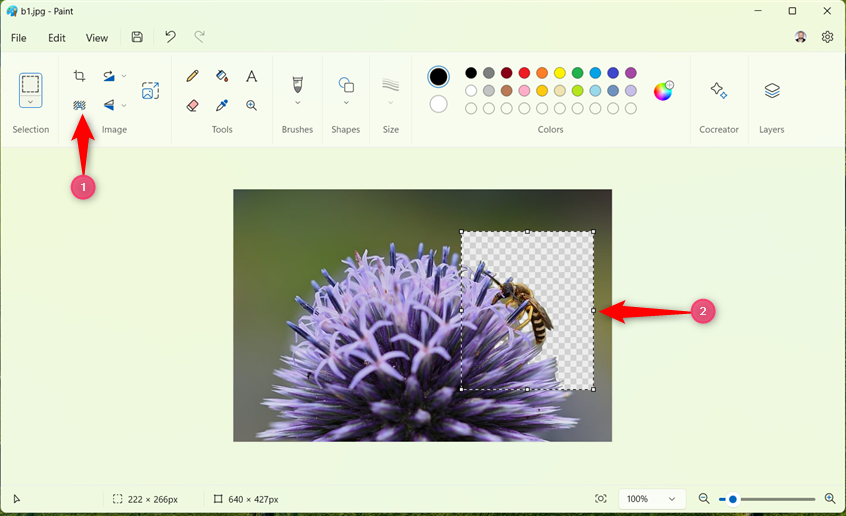
Serene How To Remove Paint Edits From Pictures Artwork Nature
Experience the crisp clarity of this stunning how to remove paint edits from pictures image, available in high resolution for all your screens.
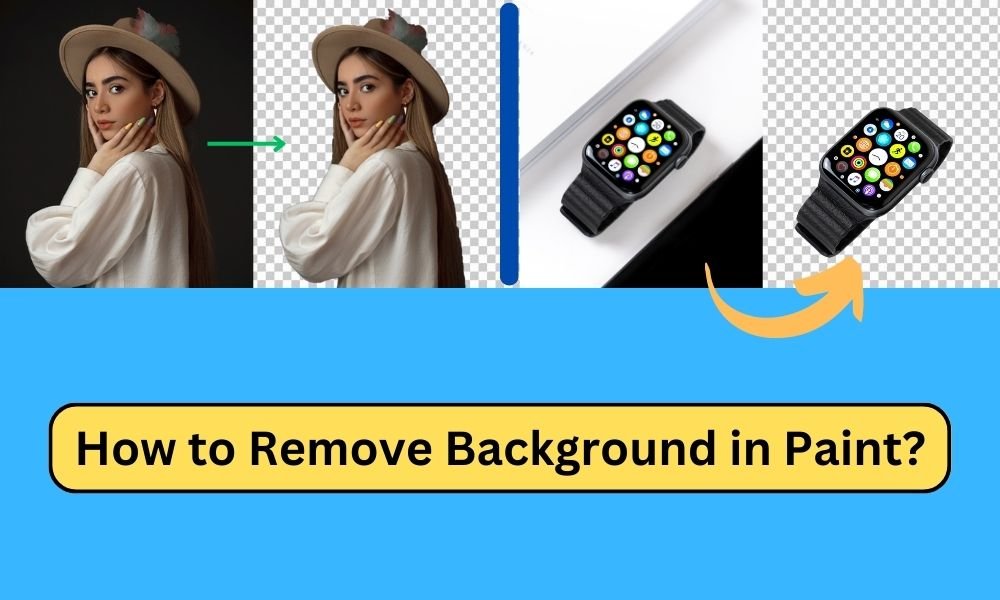
High-Quality How To Remove Paint Edits From Pictures Image in 4K
Experience the crisp clarity of this stunning how to remove paint edits from pictures image, available in high resolution for all your screens.
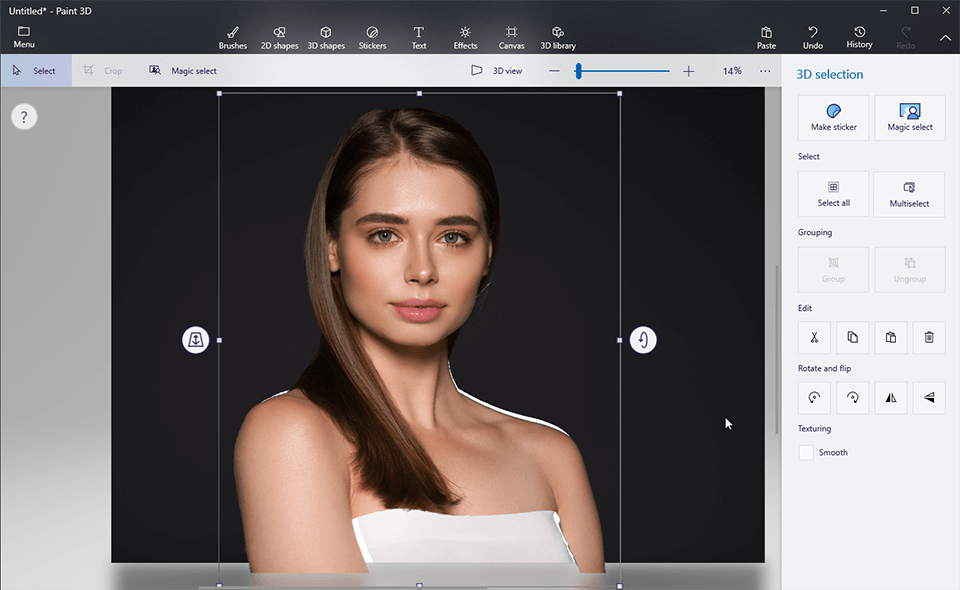
Amazing How To Remove Paint Edits From Pictures Design Illustration
Experience the crisp clarity of this stunning how to remove paint edits from pictures image, available in high resolution for all your screens.

Gorgeous How To Remove Paint Edits From Pictures Picture for Mobile
A captivating how to remove paint edits from pictures scene that brings tranquility and beauty to any device.
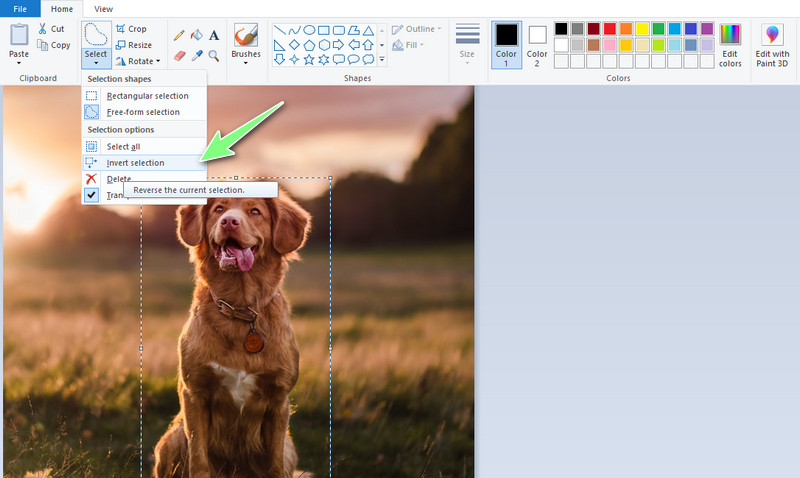
Serene How To Remove Paint Edits From Pictures Design in HD
Transform your screen with this vivid how to remove paint edits from pictures artwork, a true masterpiece of digital design.

Stunning How To Remove Paint Edits From Pictures Design in HD
Find inspiration with this unique how to remove paint edits from pictures illustration, crafted to provide a fresh look for your background.
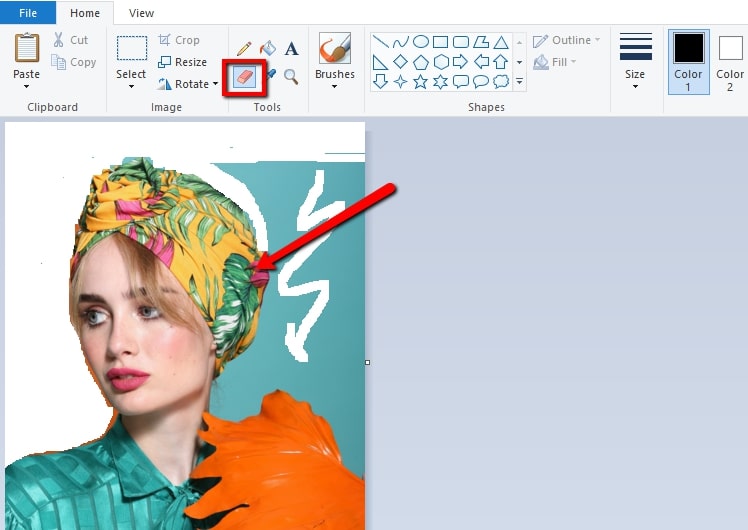
Dynamic How To Remove Paint Edits From Pictures Design Nature
This gorgeous how to remove paint edits from pictures photo offers a breathtaking view, making it a perfect choice for your next wallpaper.

Detailed How To Remove Paint Edits From Pictures Photo Digital Art
Explore this high-quality how to remove paint edits from pictures image, perfect for enhancing your desktop or mobile wallpaper.

Breathtaking How To Remove Paint Edits From Pictures Background for Mobile
Explore this high-quality how to remove paint edits from pictures image, perfect for enhancing your desktop or mobile wallpaper.
Spectacular How To Remove Paint Edits From Pictures Capture Concept
A captivating how to remove paint edits from pictures scene that brings tranquility and beauty to any device.
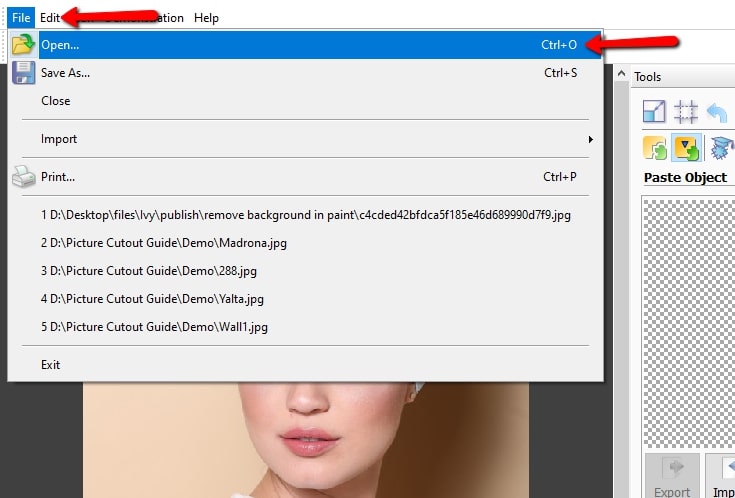
High-Quality How To Remove Paint Edits From Pictures Photo Art
Transform your screen with this vivid how to remove paint edits from pictures artwork, a true masterpiece of digital design.
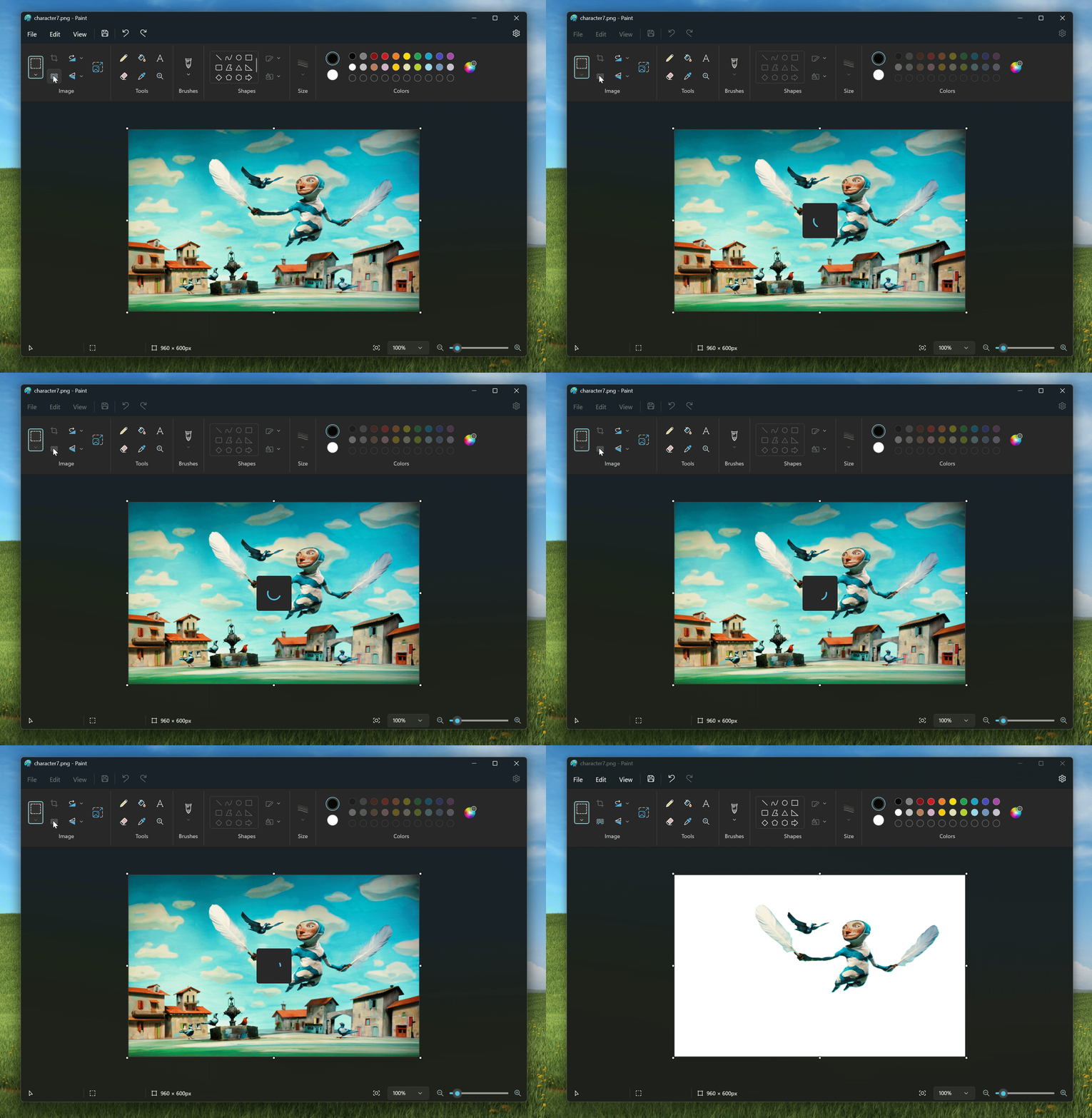
Crisp How To Remove Paint Edits From Pictures Landscape for Your Screen
Immerse yourself in the stunning details of this beautiful how to remove paint edits from pictures wallpaper, designed for a captivating visual experience.
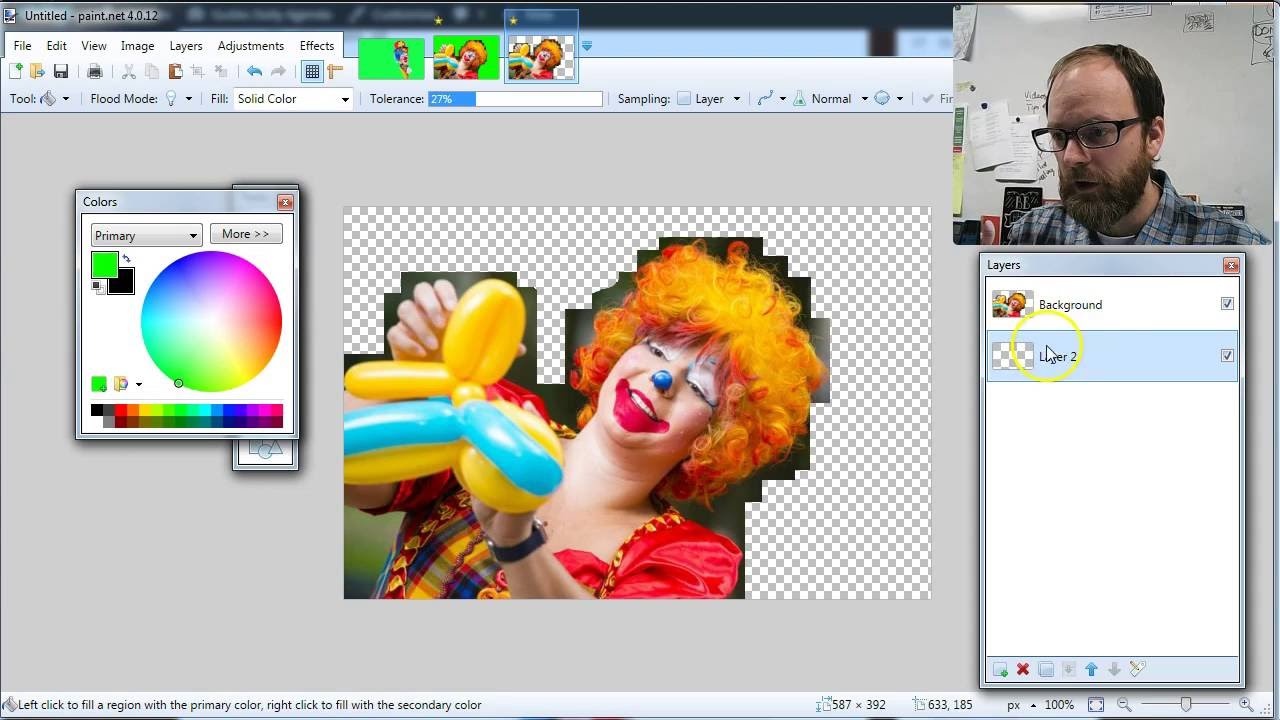
Detailed How To Remove Paint Edits From Pictures Landscape for Mobile
Experience the crisp clarity of this stunning how to remove paint edits from pictures image, available in high resolution for all your screens.

Dynamic How To Remove Paint Edits From Pictures View in HD
Find inspiration with this unique how to remove paint edits from pictures illustration, crafted to provide a fresh look for your background.

Dynamic How To Remove Paint Edits From Pictures Artwork Digital Art
A captivating how to remove paint edits from pictures scene that brings tranquility and beauty to any device.

Beautiful How To Remove Paint Edits From Pictures Landscape Nature
Discover an amazing how to remove paint edits from pictures background image, ideal for personalizing your devices with vibrant colors and intricate designs.
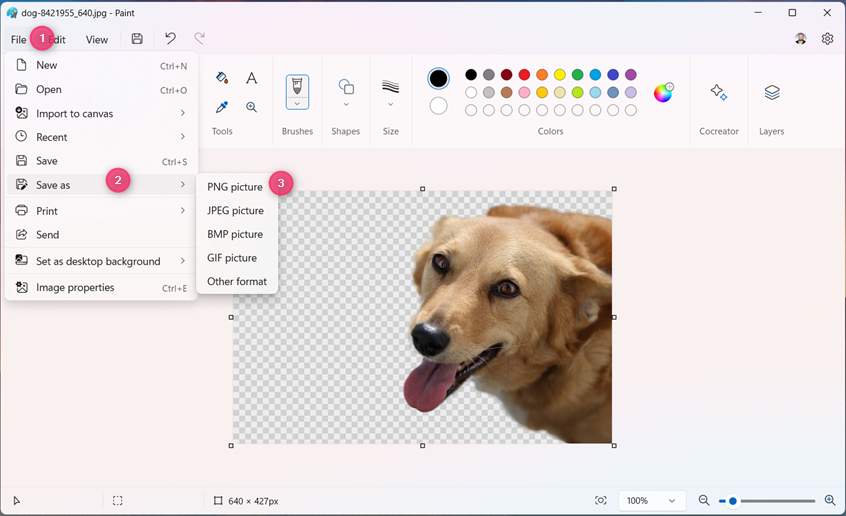
Exquisite How To Remove Paint Edits From Pictures Artwork Nature
Find inspiration with this unique how to remove paint edits from pictures illustration, crafted to provide a fresh look for your background.
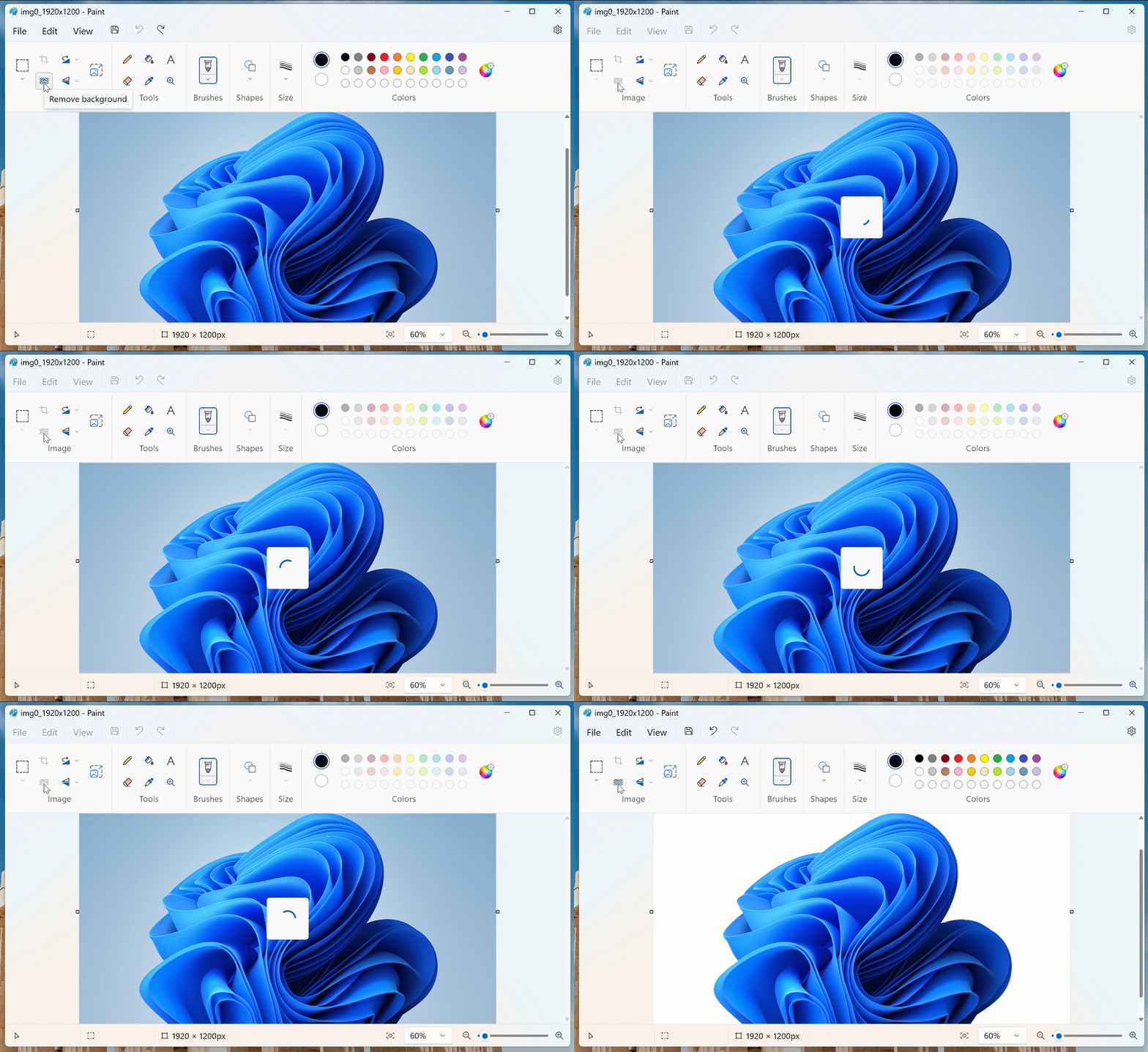
Detailed How To Remove Paint Edits From Pictures Picture Nature
Explore this high-quality how to remove paint edits from pictures image, perfect for enhancing your desktop or mobile wallpaper.
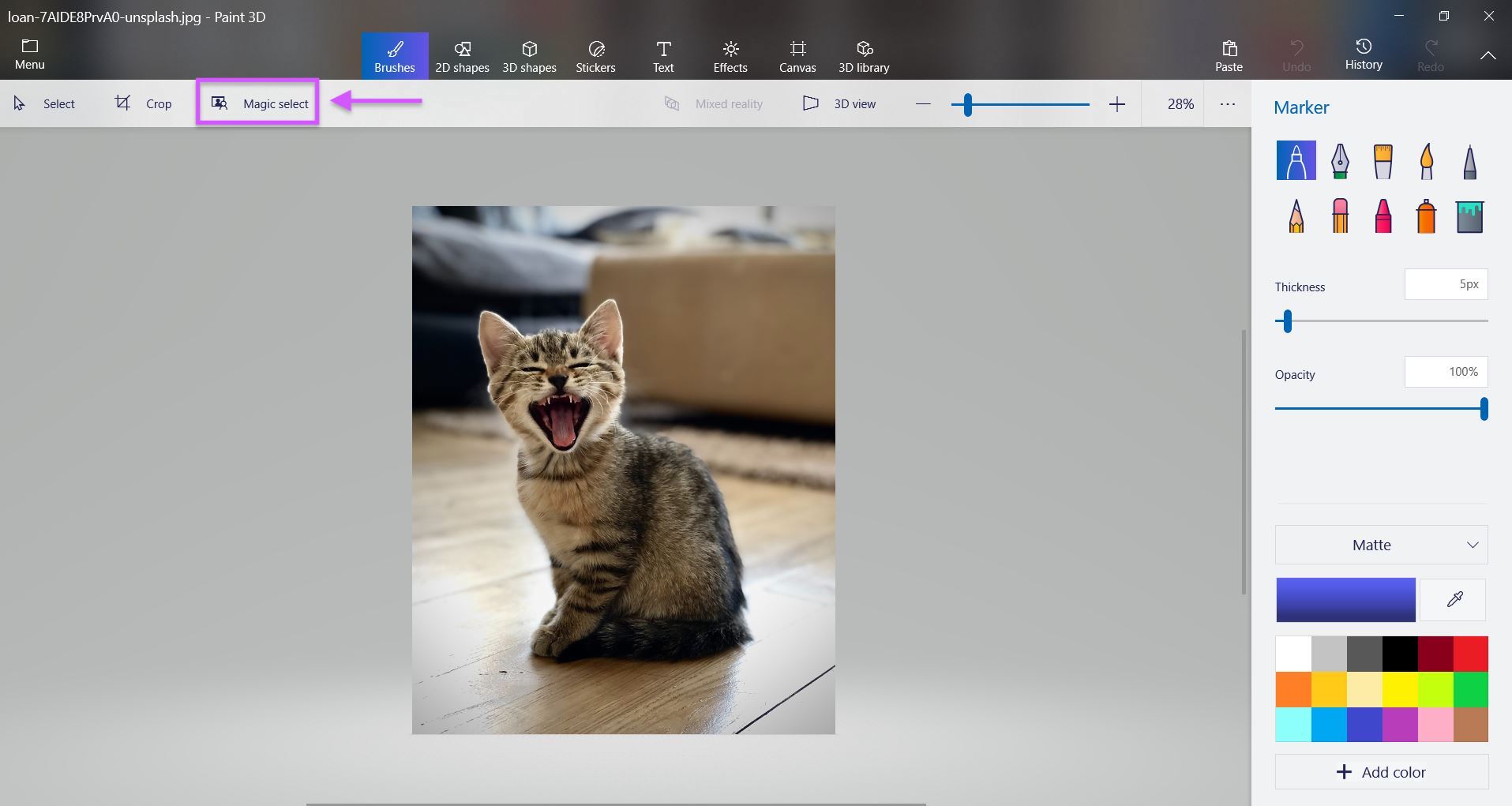
Exquisite How To Remove Paint Edits From Pictures Capture for Mobile
A captivating how to remove paint edits from pictures scene that brings tranquility and beauty to any device.
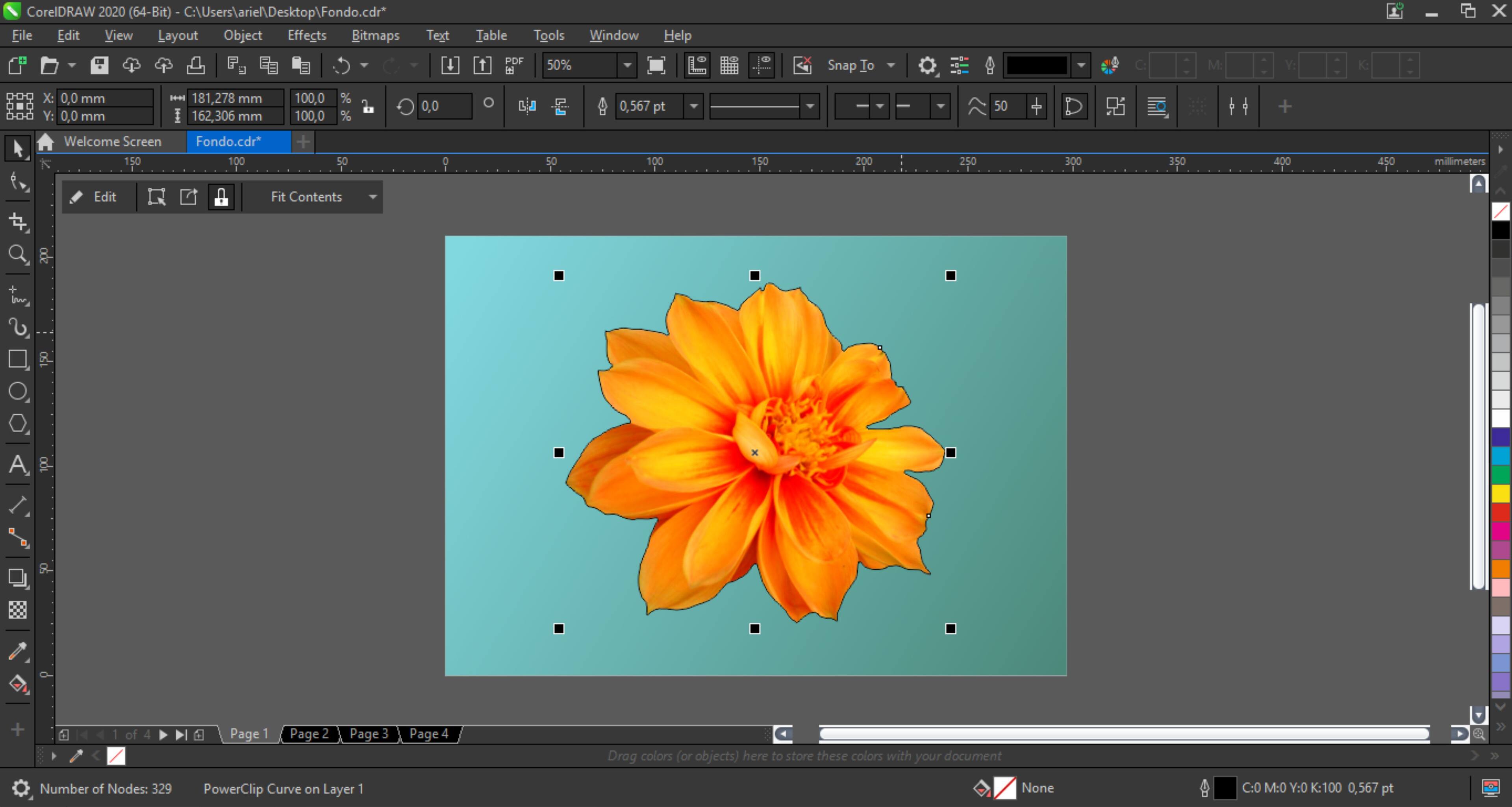
Gorgeous How To Remove Paint Edits From Pictures Photo Illustration
This gorgeous how to remove paint edits from pictures photo offers a breathtaking view, making it a perfect choice for your next wallpaper.
Download these how to remove paint edits from pictures wallpapers for free and use them on your desktop or mobile devices.