Digital Paint Photoshop
Mastering Digital Paint Photoshop: Your Ultimate Guide to Digital Art
Are you ready to dive into the vibrant world of digital creation? Whether you are a seasoned traditional artist or a complete beginner, learning the ropes of Digital Paint Photoshop can unlock incredible artistic potential. Photoshop isn't just for photo manipulation; it is arguably the most powerful tool available for professional digital painting.
This comprehensive guide is designed to walk you through the essential tools, techniques, and workflows you need to start creating stunning artwork today. We will focus on making complex concepts easy to understand, ensuring a smooth and enjoyable learning experience.
Introduction to Digital Painting in Photoshop
Digital painting essentially simulates the look and feel of traditional media—like oil paints, watercolors, or charcoal—using digital software. Photoshop excels at this simulation due to its robust brush engine and flexible layer system. Furthermore, the non-destructive nature of digital art allows for limitless experimentation without fear of ruining your canvas.
The beauty of starting your journey in Digital Paint Photoshop is the sheer amount of resources and community support available. While the interface can seem intimidating initially, concentrating on a few core features will help you start painting immediately.
To truly begin digital painting, you will need more than just the software; a graphics tablet (like Wacom or Huion) is crucial. These tablets allow you to control brush size and opacity based on pressure, mimicking a real brush or pencil.
Essential Tools and Settings for Digital Paint Photoshop
Before you lay down your first stroke, configuring your workspace is key to efficiency. You should customize your toolbars to keep the Brush tool, Eyedropper tool, and Layer panel easily accessible. Optimizing these fundamental settings will significantly improve your flow when using Digital Paint Photoshop.
Choosing the Right Brushes
Brushes are the heart of digital painting. Photoshop comes equipped with many default brushes, but the true power lies in custom brush packs. You don't need hundreds of brushes; mastering a core set of five to ten is usually sufficient for professional work.
When selecting a brush, look closely at its texture, shape dynamics, and how it handles pressure sensitivity. Generally, digital artists rely on three main brush types:
- Hard Edge Brushes: Excellent for line work, sharp edges, and detailed areas.
- Soft Edge Brushes: Used for blending colors, creating soft gradients, and applying atmospheric effects.
- Textured Brushes: Essential for adding realistic details like rough fabric, foliage, or skin texture.
Remember to adjust your Opacity and Flow settings frequently. Opacity controls how transparent the brush is, while Flow controls the rate at which paint is applied while the stylus is held down.
Understanding Layers and Blend Modes
Layers are the backbone of non-destructive editing in Photoshop. Instead of painting directly onto your drawing, you separate different elements—like line art, background, and shadows—onto their own distinct layers. This approach allows you to edit one component without affecting the others.
Blend Modes determine how the pixels of one layer interact with the pixels of the layers beneath it. For instance, modes like 'Multiply' are perfect for realistic shadows, while 'Screen' or 'Overlay' are essential for vibrant highlights and lighting effects.
Always utilize layer groups to keep your workspace organized. Naming your layers properly (e.g., "Base Skin," "Hair Highlights," "Background Sky") prevents frustration as your complexity increases.
Step-by-Step Guide: Starting Your Digital Painting Journey
Starting a new piece with Digital Paint Photoshop can feel overwhelming, but breaking the process down into manageable stages makes it much easier. Here is a typical workflow that many professional artists follow, moving from concept to finished art:
Sketching and Line Art
Begin with a loose sketch on a new layer, focusing only on composition and proportions. Use a light, low-opacity brush for this stage. Once you are happy with the rough placement, refine your lines on a second layer, often referred to as the "clean line art" layer.
Many digital painters skip traditional line art entirely, preferring a "painting over sketch" method. However, for beginners, clean line art provides a crucial boundary for the next stage: blocking in colors.
Blocking in Base Colors
Create a separate layer underneath your line art for your base colors (or 'flats'). Use the Lasso tool or Selection tools to accurately define the shapes of different elements (skin, clothing, hair). Fill these selections with solid, mid-tone colors.
It is important to keep each primary element on its own dedicated layer (e.g., one layer for the character, one for the ground, and one for the sky). This structure is essential for applying shadows and highlights later using Clipping Masks.
Adding Details and Texture
This is where your artwork truly comes to life. Begin merging the colors together, using blending brushes to smooth transitions. Start with broad strokes and gradually decrease your brush size to add finer details like wrinkles, strands of hair, or reflective surfaces.
Mastering Lighting and Shadows
Understanding light is paramount. Create a new layer set to the 'Multiply' blend mode for shadows, and paint the areas where light cannot reach. Similarly, use a 'Screen' or 'Overlay' layer for highlights and light sources.
The key to realistic rendering is defining a clear light source early on. Ask yourself: Where is the light coming from? How intense is it? Remember that shadows are rarely just black; they often contain reflected light and color from the environment.
Tips and Workflow Optimization
Working efficiently in Digital Paint Photoshop means embracing shortcuts and clever techniques. These small adjustments can shave hours off your painting time and reduce strain.
- Master Keyboard Shortcuts: Essential shortcuts include 'B' for Brush, 'E' for Eraser, 'I' for Eyedropper, and '[' and ']' for quick brush size adjustments. Using the shortcut 'Ctrl/Cmd + Alt/Option + Z' for multiple undo steps is a lifesaver.
- Use Clipping Masks: Instead of worrying about painting outside the lines, use a Clipping Mask on your shadow or detail layer. This ensures that the paint only shows up where the underlying base layer already has pixels.
- Flip the Canvas: Regularly hit 'H' (if set up) or use Image > Image Rotation > Flip Canvas Horizontal. Flipping your image helps reset your perspective and immediately reveals compositional errors or anatomical issues your eyes have become accustomed to.
- The Color Picker Matters: Don't rely solely on the color wheel. Use the Eyedropper tool frequently to pick up colors already on your canvas. This technique, called 'color picking,' helps blend colors seamlessly and creates natural color harmony.
Furthermore, dedicating time to study color theory and anatomy will always yield better results than simply accumulating more tools. Software is just the medium; knowledge is the real skill.
Conclusion
Learning Digital Paint Photoshop is a rewarding journey that requires patience and consistent practice. By mastering the core tools—brushes, layers, and blend modes—and implementing an organized workflow, you are well on your way to creating stunning digital masterpieces.
Don't be afraid to experiment with different brush packs and techniques. The digital canvas is forgiving, allowing you to learn from every stroke. Now, go create something beautiful!
Frequently Asked Questions (FAQ) about Digital Paint Photoshop
- Is Photoshop the best software for digital painting?
- Photoshop is considered industry standard due to its robustness, extensive features, and vast customization options, especially its brush engine. However, alternatives like Clip Studio Paint or Procreate (for iPad) are also very popular, depending on the artist's needs and platform.
- Do I need a graphics tablet to do Digital Paint Photoshop?
- Absolutely. While technically you can paint with a mouse, a graphics tablet offers pressure sensitivity, which is critical for varying line weight, opacity, and achieving that natural brush stroke feel.
- What resolution should I use for digital painting?
- For high-quality work, particularly if you plan to print it, aim for a minimum resolution of 300 DPI (Dots Per Inch). A common canvas size for detailed art is around 4000 pixels on the long side. Higher resolution provides more detail but requires more computer processing power.
- How do I import custom brushes into Photoshop?
- Custom Photoshop brushes typically come in the .ABR file format. To import them, open the Brush Preset Picker, click the gear icon, and select "Import Brushes." Locate your .ABR file, and the brushes will be added to your library.
Digital Paint Photoshop
Digital Paint Photoshop Wallpapers
Collection of digital paint photoshop wallpapers for your desktop and mobile devices.
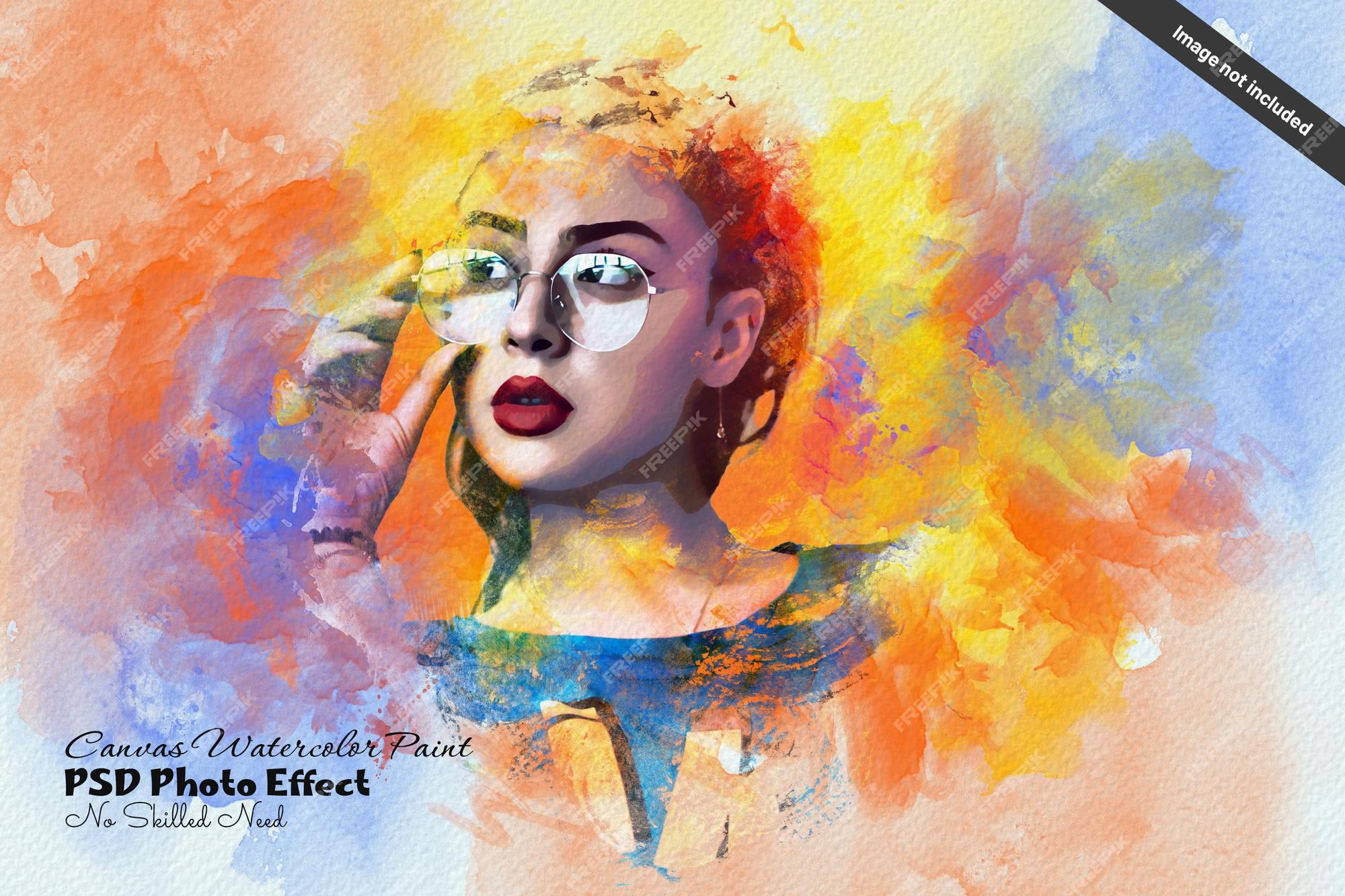
Gorgeous Digital Paint Photoshop Abstract Art
Immerse yourself in the stunning details of this beautiful digital paint photoshop wallpaper, designed for a captivating visual experience.
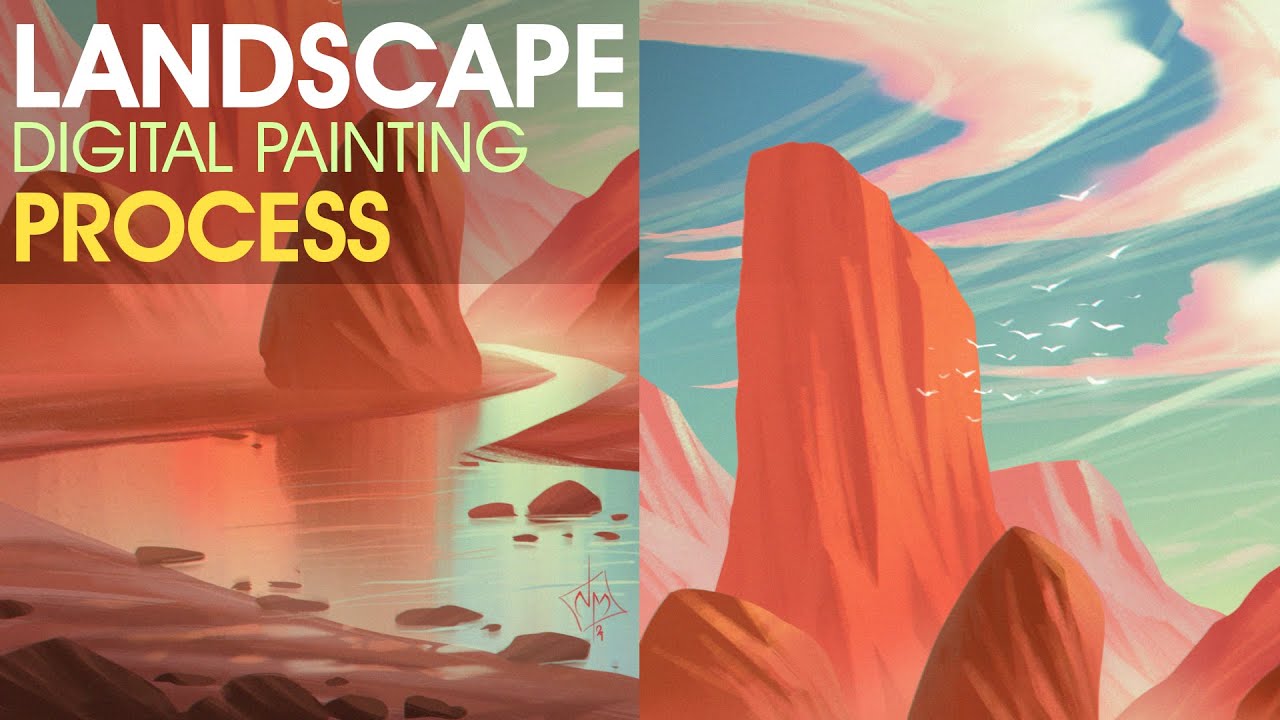
Spectacular Digital Paint Photoshop Wallpaper for Mobile
Find inspiration with this unique digital paint photoshop illustration, crafted to provide a fresh look for your background.

Gorgeous Digital Paint Photoshop Capture in HD
Find inspiration with this unique digital paint photoshop illustration, crafted to provide a fresh look for your background.

High-Quality Digital Paint Photoshop Landscape in 4K
Discover an amazing digital paint photoshop background image, ideal for personalizing your devices with vibrant colors and intricate designs.

Gorgeous Digital Paint Photoshop Photo in 4K
Immerse yourself in the stunning details of this beautiful digital paint photoshop wallpaper, designed for a captivating visual experience.

Detailed Digital Paint Photoshop Picture in 4K
Explore this high-quality digital paint photoshop image, perfect for enhancing your desktop or mobile wallpaper.
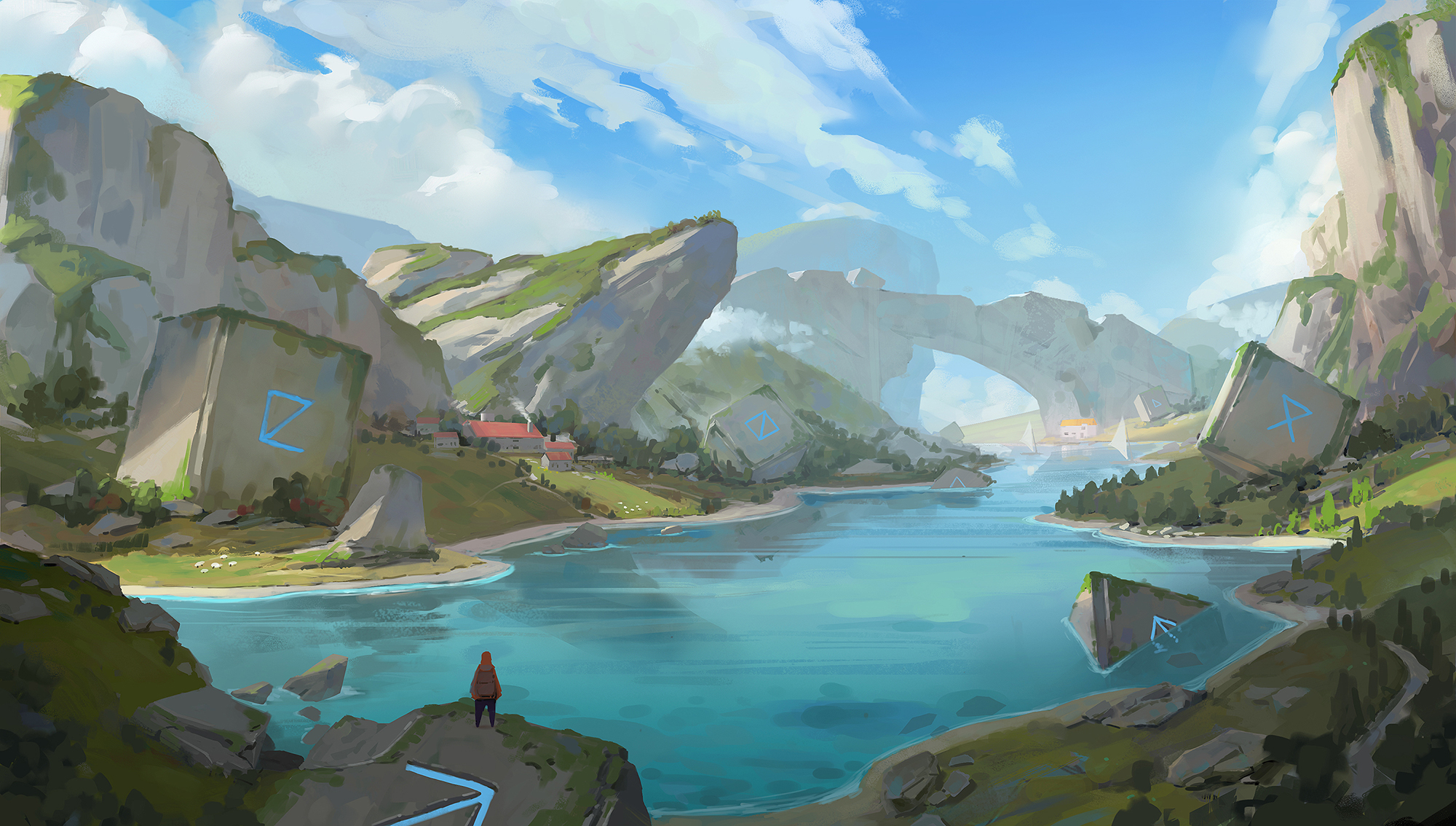
Stunning Digital Paint Photoshop Abstract in 4K
A captivating digital paint photoshop scene that brings tranquility and beauty to any device.

Gorgeous Digital Paint Photoshop Moment Art
Immerse yourself in the stunning details of this beautiful digital paint photoshop wallpaper, designed for a captivating visual experience.

Serene Digital Paint Photoshop View for Your Screen
Experience the crisp clarity of this stunning digital paint photoshop image, available in high resolution for all your screens.
Stunning Digital Paint Photoshop Wallpaper in HD
Find inspiration with this unique digital paint photoshop illustration, crafted to provide a fresh look for your background.
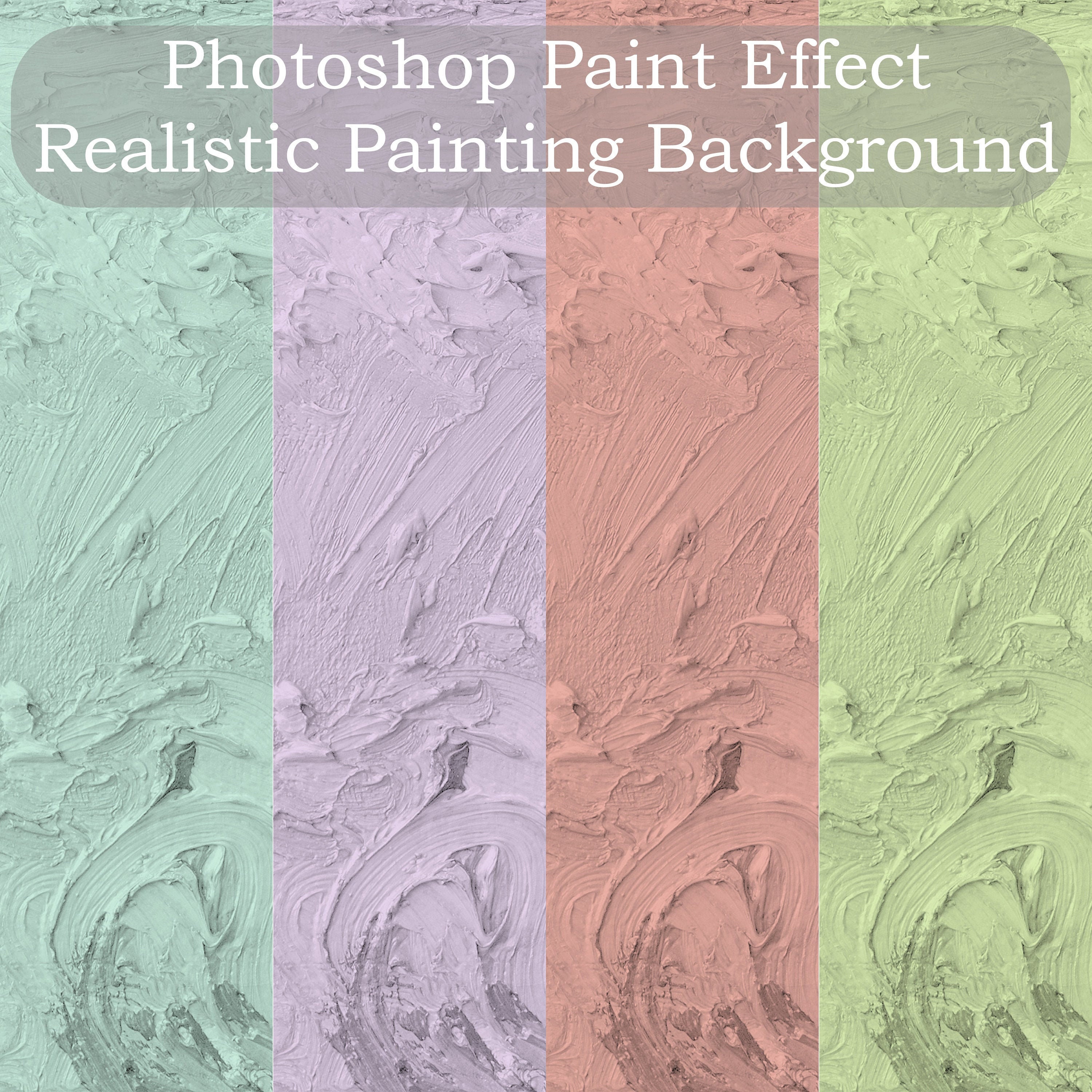
Gorgeous Digital Paint Photoshop Abstract Nature
Find inspiration with this unique digital paint photoshop illustration, crafted to provide a fresh look for your background.
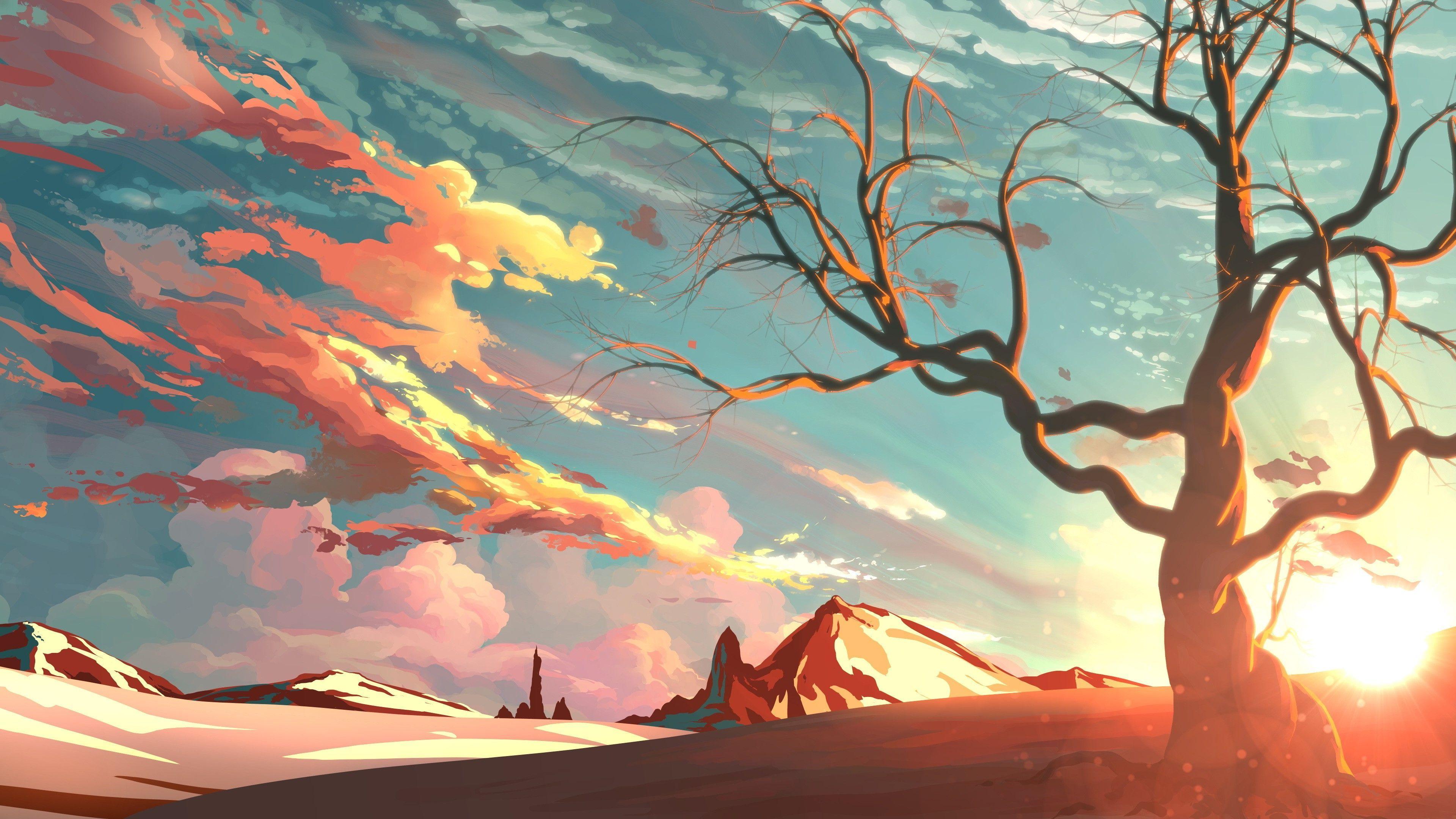
Crisp Digital Paint Photoshop Wallpaper Digital Art
A captivating digital paint photoshop scene that brings tranquility and beauty to any device.
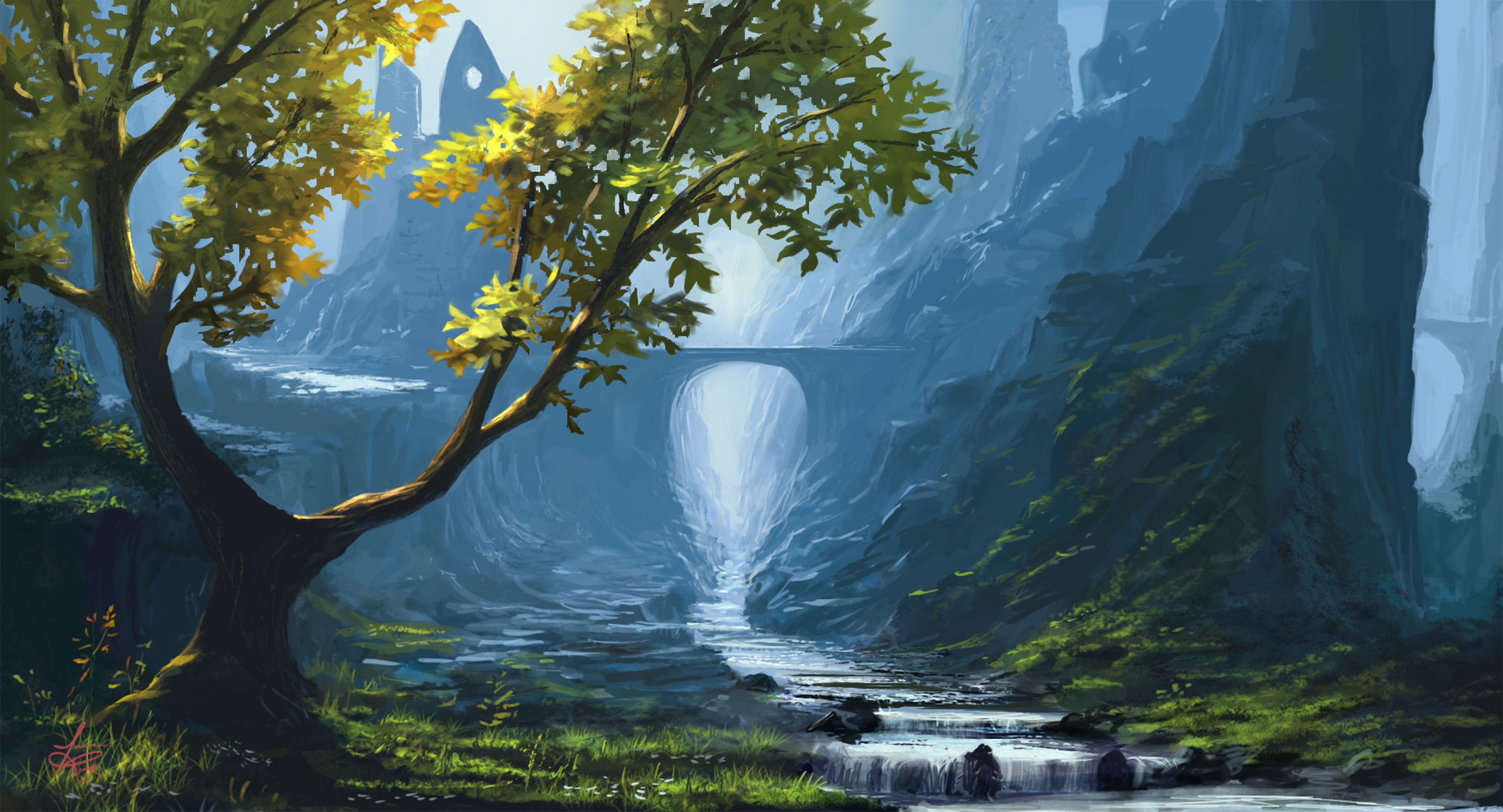
Dynamic Digital Paint Photoshop View for Desktop
Find inspiration with this unique digital paint photoshop illustration, crafted to provide a fresh look for your background.
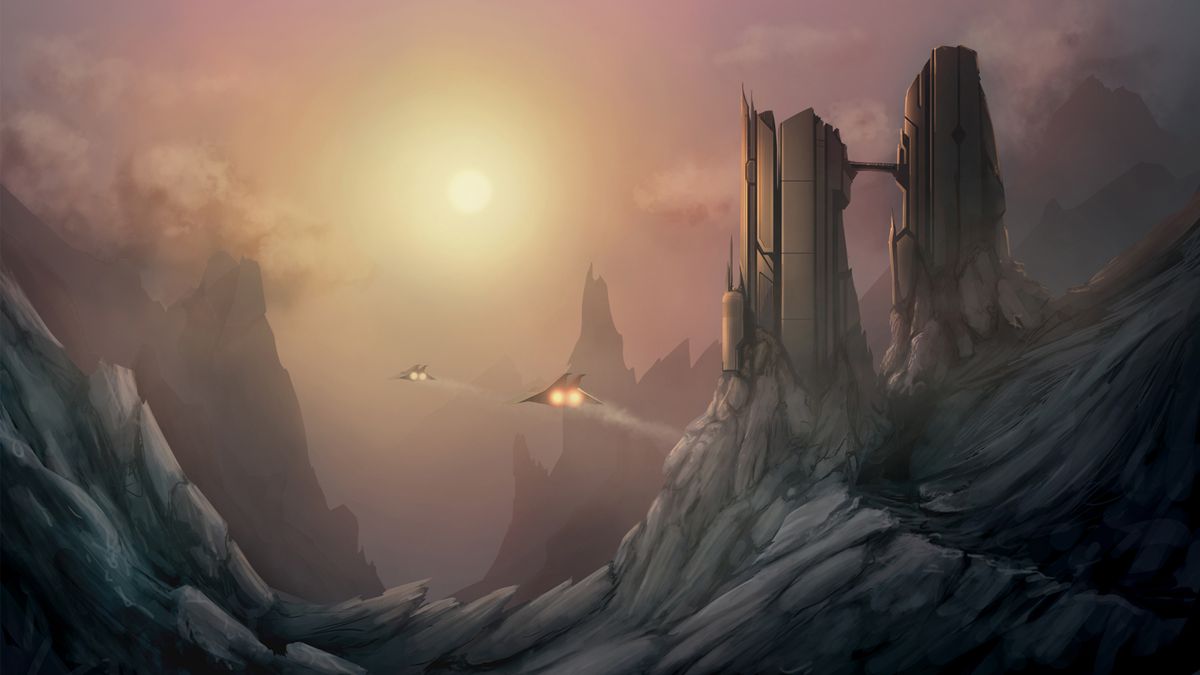
Artistic Digital Paint Photoshop Abstract in 4K
This gorgeous digital paint photoshop photo offers a breathtaking view, making it a perfect choice for your next wallpaper.
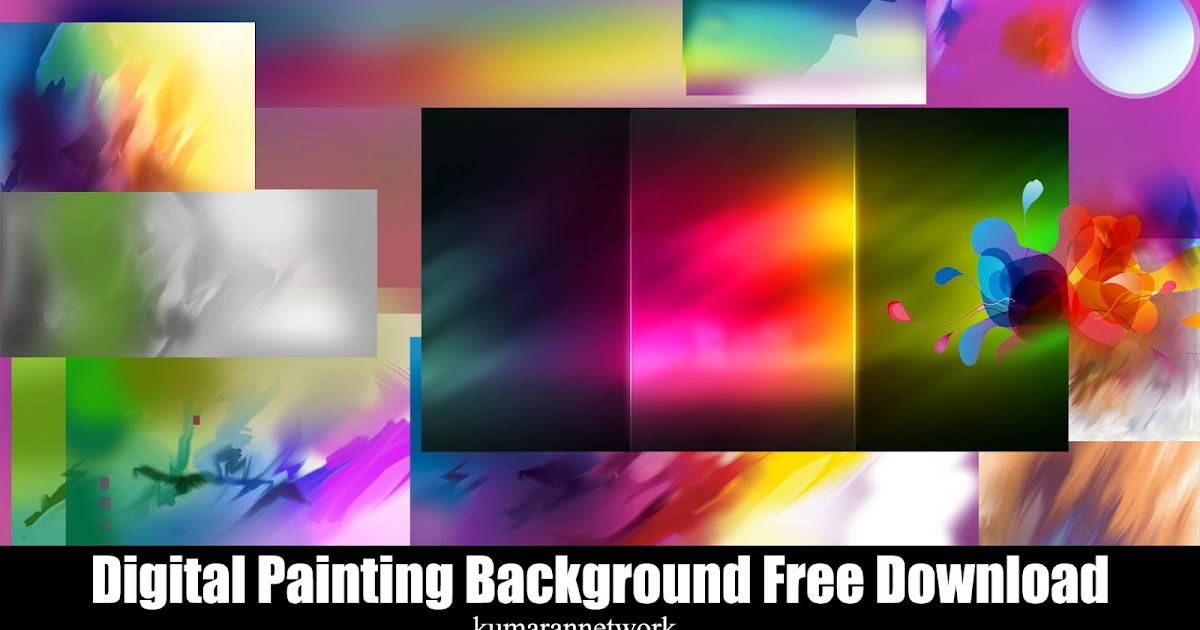
Detailed Digital Paint Photoshop Wallpaper Digital Art
Experience the crisp clarity of this stunning digital paint photoshop image, available in high resolution for all your screens.
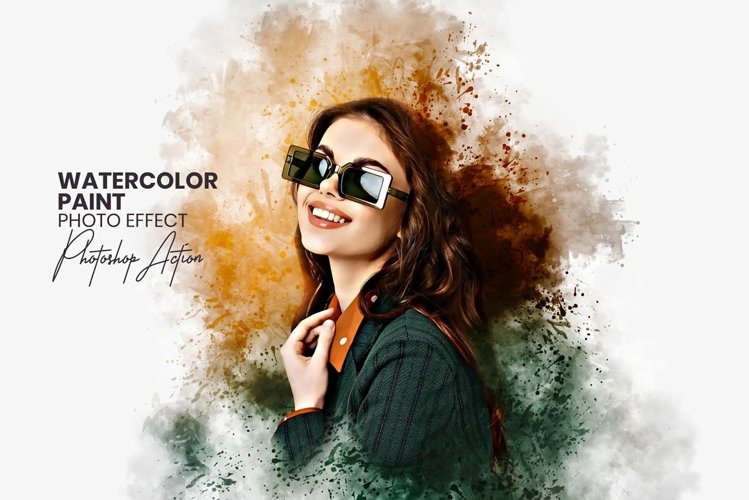
Amazing Digital Paint Photoshop Capture Concept
Explore this high-quality digital paint photoshop image, perfect for enhancing your desktop or mobile wallpaper.
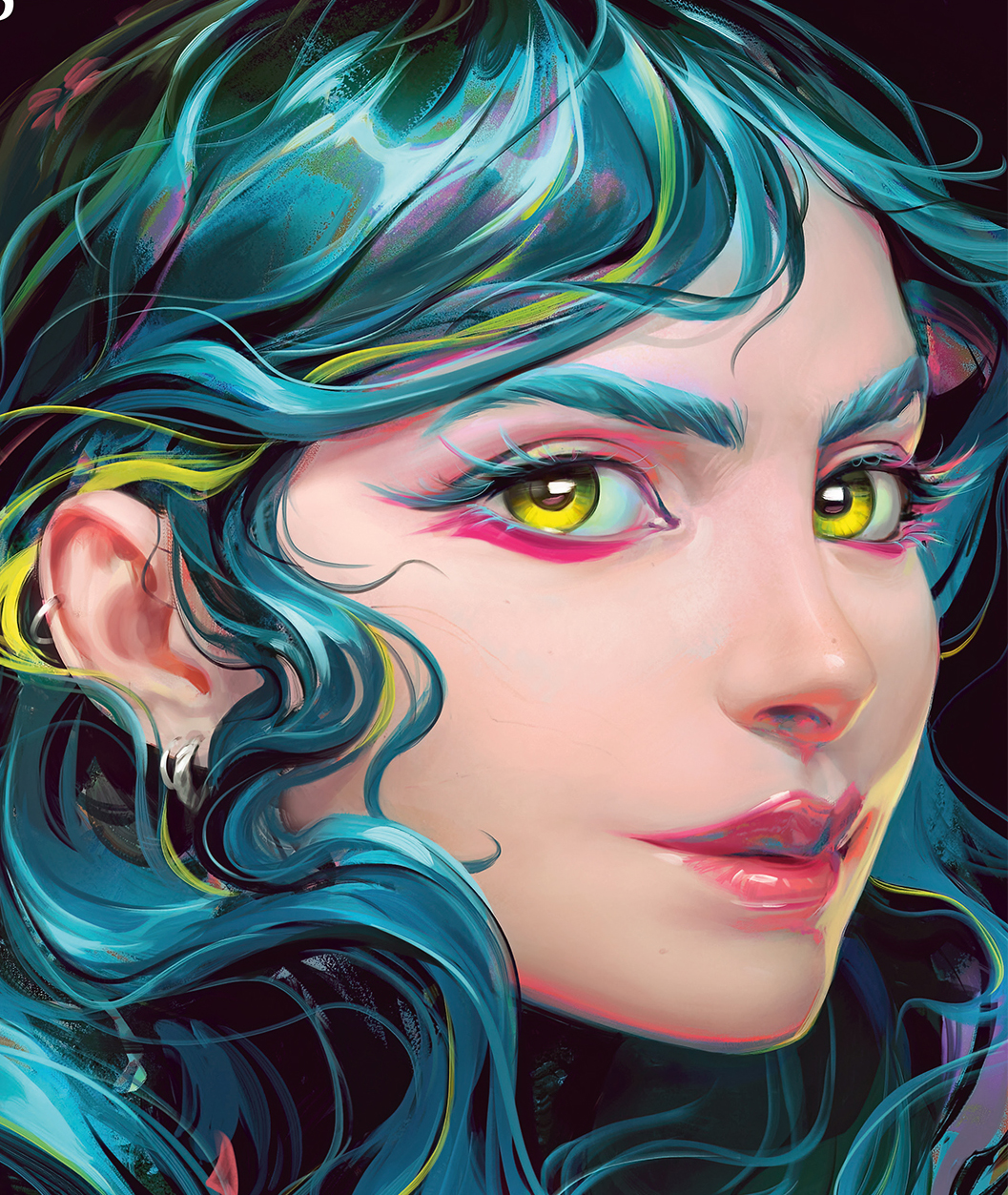
High-Quality Digital Paint Photoshop Capture Nature
Experience the crisp clarity of this stunning digital paint photoshop image, available in high resolution for all your screens.

Amazing Digital Paint Photoshop Picture for Mobile
Experience the crisp clarity of this stunning digital paint photoshop image, available in high resolution for all your screens.

Breathtaking Digital Paint Photoshop Photo Illustration
Experience the crisp clarity of this stunning digital paint photoshop image, available in high resolution for all your screens.
Breathtaking Digital Paint Photoshop Photo for Your Screen
Transform your screen with this vivid digital paint photoshop artwork, a true masterpiece of digital design.
Download these digital paint photoshop wallpapers for free and use them on your desktop or mobile devices.