Microsoft Paint Resize Image
Microsoft Paint Resize Image: Your Ultimate Guide to Perfect Dimensions
Hey there! If you've ever needed to quickly change the size of a photo or image without downloading complex, expensive software, you've probably turned to a trusty old friend: Microsoft Paint. Guess what? Paint is still an incredibly efficient tool for making quick edits, especially when you need to perform a precise Microsoft Paint resize image operation.
Whether you need to shrink a massive photograph for an email attachment or slightly enlarge a graphic for a social media post, Paint offers simple, effective controls. This comprehensive guide will walk you through every step, ensuring you get the perfect dimensions every time, without sacrificing image quality unnecessarily.
Why Microsoft Paint is Still Great for Resizing Images
In a world full of sophisticated editors like Photoshop and GIMP, why bother with the built-in Windows application? The answer is simple: accessibility and speed. Microsoft Paint is pre-installed on virtually every Windows PC, meaning you don't need to worry about installation or system requirements.
For most basic tasks, including simple resizing, Paint provides all the necessary functionality in a straightforward interface. You can achieve professional-looking results in seconds, not minutes. If your goal is to quickly adjust the size or resolution, the Microsoft Paint resize image feature is unmatched in its simplicity.
Plus, learning how to manipulate images in Paint is a fantastic foundation for understanding more complex editing concepts later on. It teaches you the basics of pixels, aspect ratios, and digital dimensions.
Step-by-Step: How to Microsoft Paint Resize Image Easily
Ready to jump in? We're going to break down the resizing process into manageable, easy-to-follow steps. It's easier than you might think!
Opening Your Image in Paint
Before you can resize anything, you need to open the image file. There are two primary ways to do this quickly in Windows:
- **The Right-Click Method:** Locate your image file, right-click on it, hover over "Open with," and select "Paint."
- **The In-App Method:** Open Paint first, click the "File" tab in the top left corner, select "Open," and then navigate to your image file.
Once your image is loaded, you will see it displayed on the canvas, usually surrounded by white space if the image is small, or taking up the whole screen if it's large.
Accessing the Resize and Skew Tool
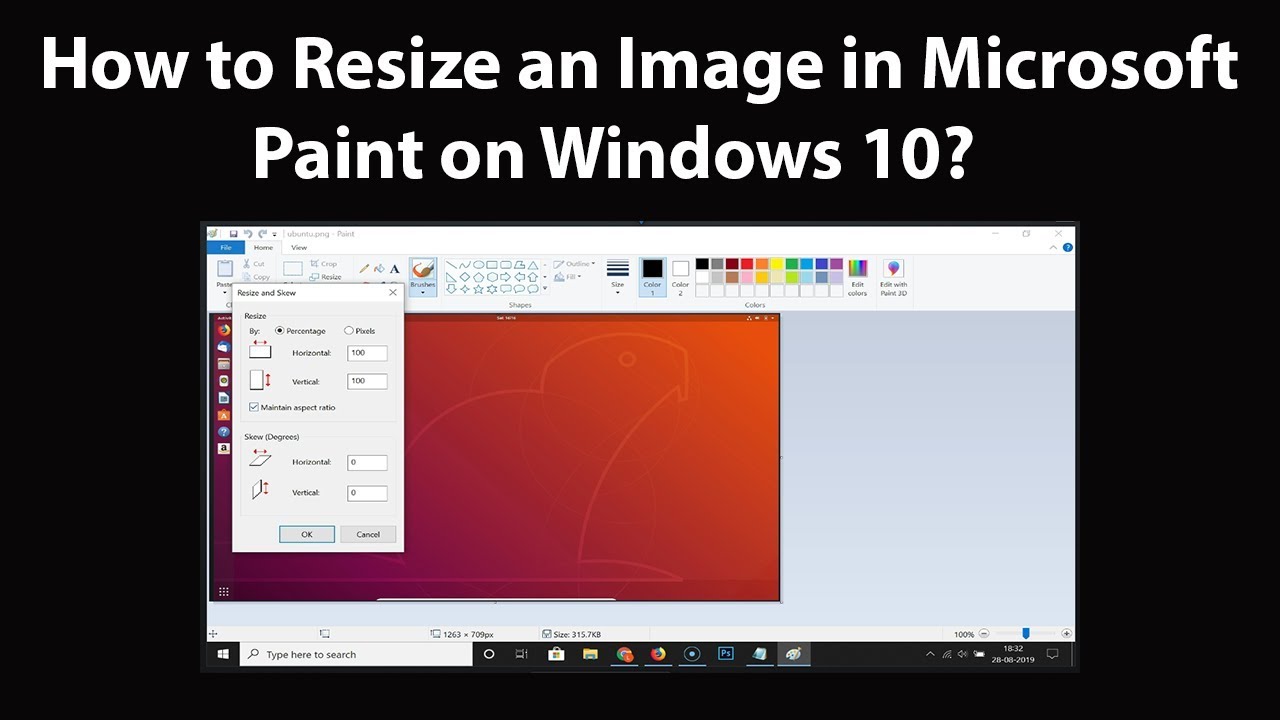
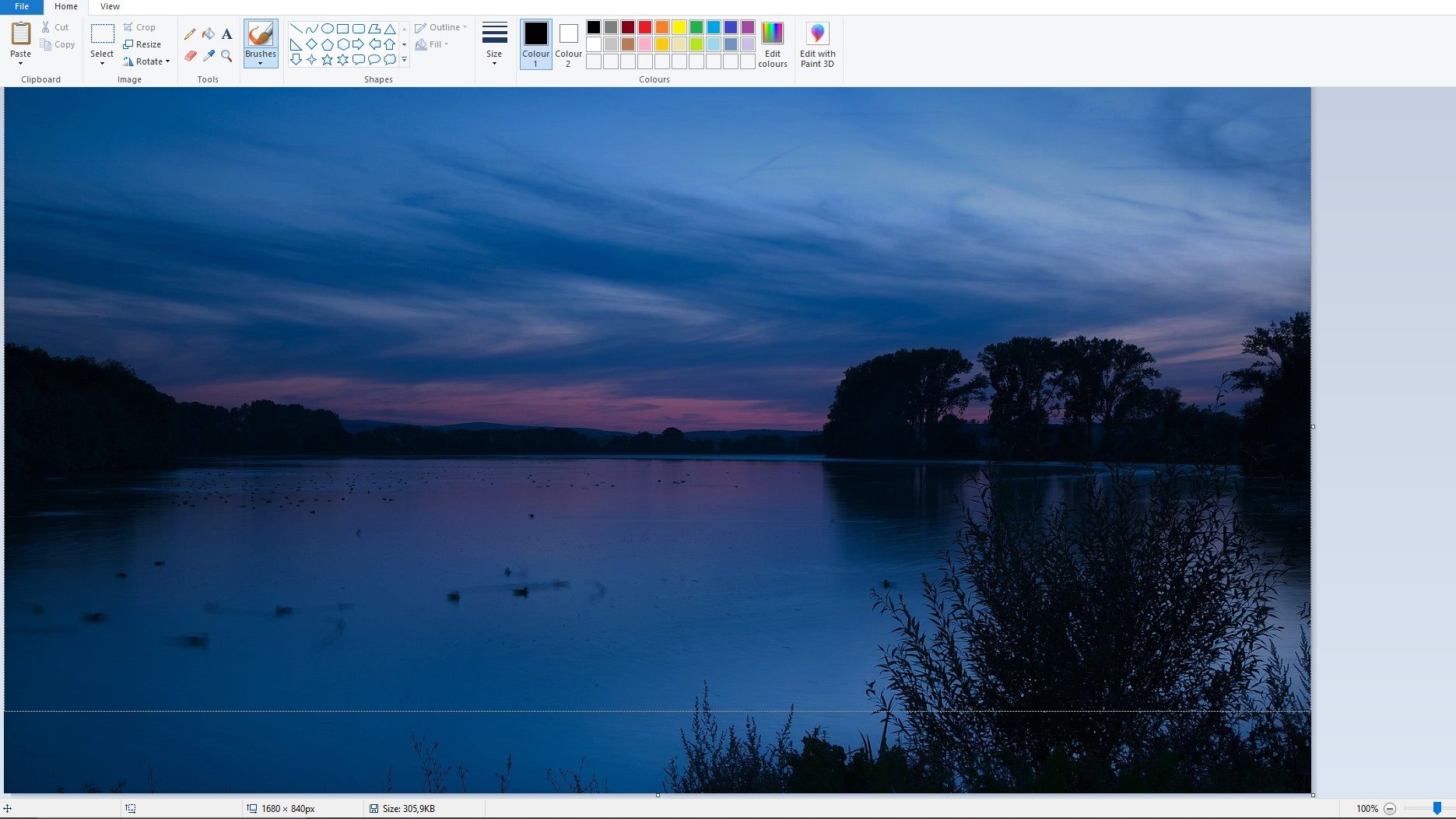
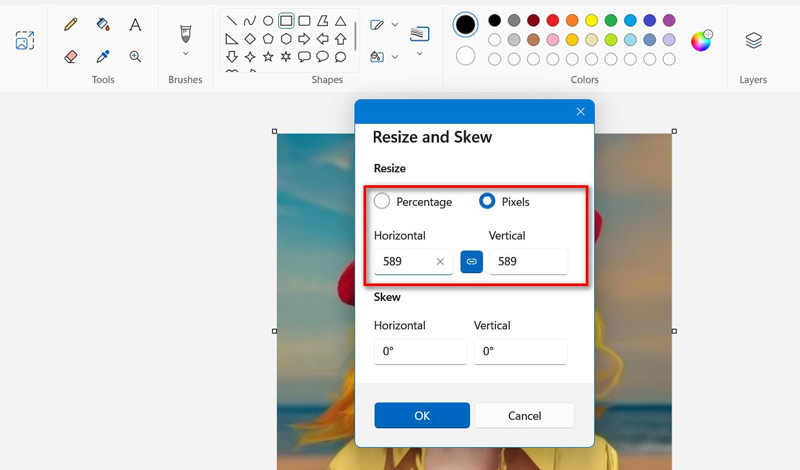
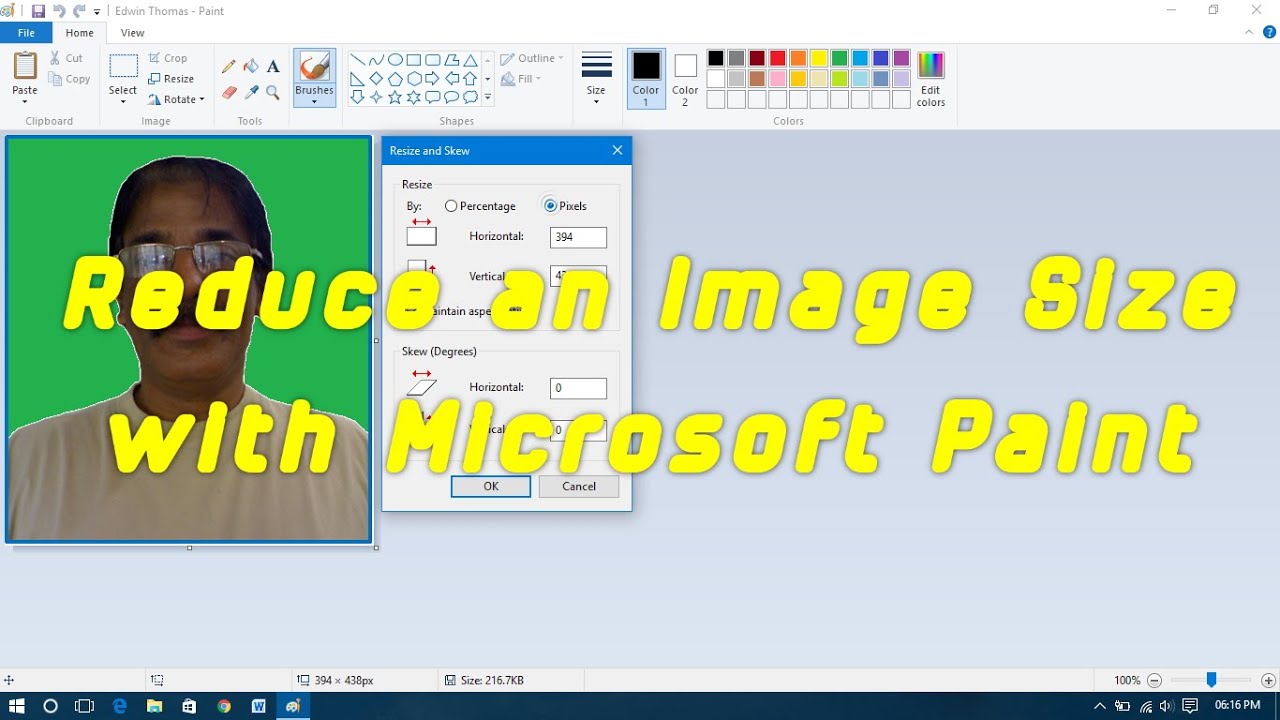
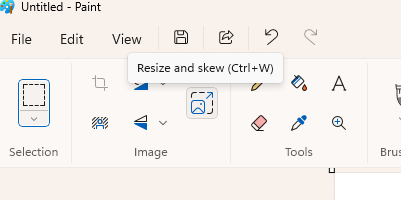
The magic happens right on the "Home" tab, which is the default view when you open Paint. Look in the "Image" group (usually the first group of tools on the left). You will see the "Resize" button, often depicted by a small square inside a larger square.
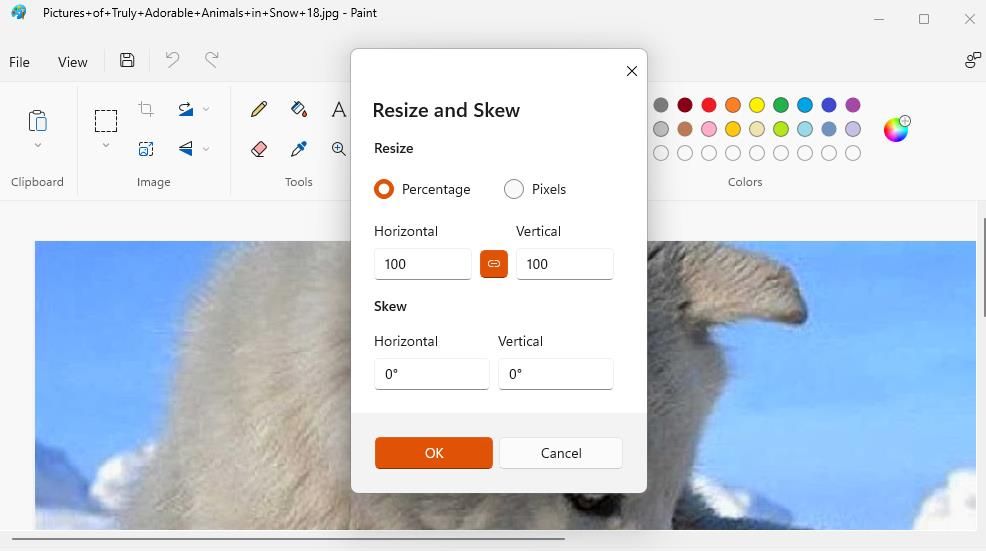
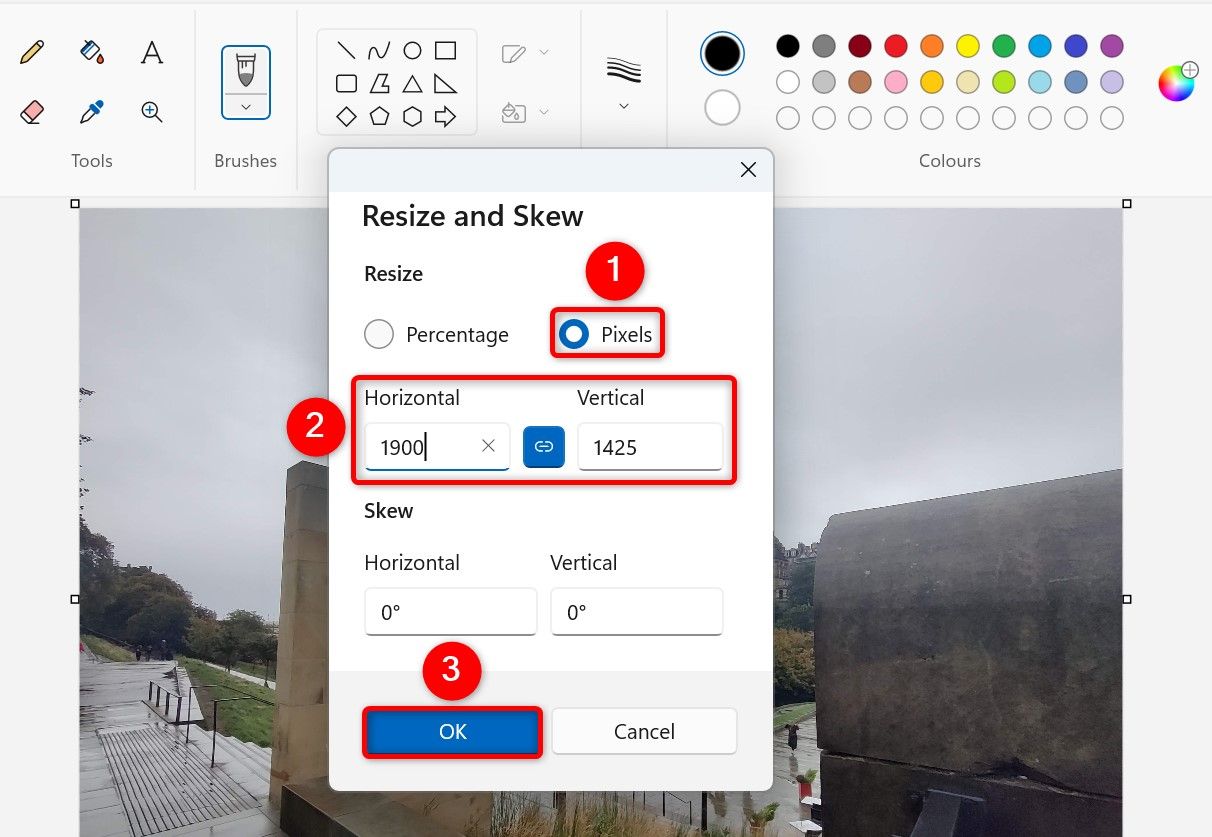
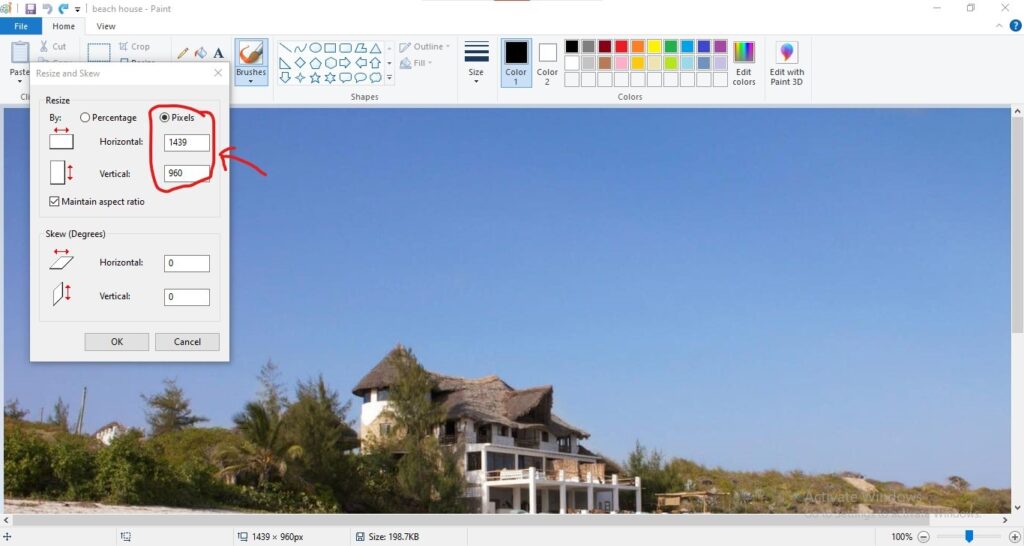
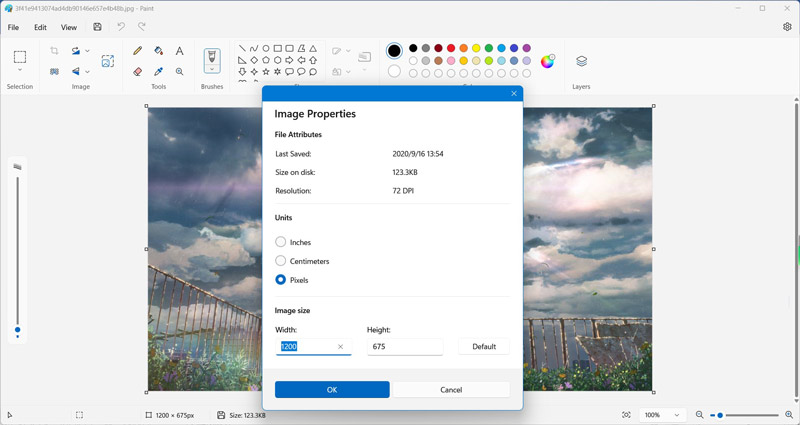
Clicking this button will open the crucial "Resize and Skew" dialog box. This is where you decide exactly how you want to perform the Microsoft Paint resize image function.
Resizing by Percentage vs. Pixels
Inside the dialog box, you have two main options for setting your new dimensions. You can choose either "Percentage" or "Pixels." Choosing the right one depends entirely on your goal:
- **Percentage:** Use this if you want to scale the image relative to its original size. For example, entering "50" in both horizontal and vertical fields will make the image exactly half its current size. This is great for quick reductions.
- **Pixels:** Use this when you need a specific, exact resolution, such as "1920x1080" or "600x400." If you are resizing for a website or a printing standard, using pixels is often the necessary method.
Remember that Paint will automatically update the second dimension (Vertical or Horizontal) when you adjust the first, provided the aspect ratio lock is enabled. This feature is your best friend!
Maintaining the Aspect Ratio (Crucial Tip!)
Look for the checkbox labeled "Maintain aspect ratio." This is arguably the most important element when you Microsoft Paint resize image files.
When this box is checked, Paint ensures that the image height and width remain proportional to the original. If you resize without this checked, your image will stretch or squish, leading to distortion.
Only uncheck this box if you intentionally want to skew the image (e.g., making a standard photo look elongated or compressed). For nearly all typical resizing tasks, keep that box firmly checked!
Once you've entered your desired percentage or pixel values, click "OK" and Paint will instantly apply the resizing transformation.
Advanced Tips: Skewing and Custom Cropping
While basic resizing handles most needs, Paint offers a couple of other useful tools related to dimension control.
The Skew Function
The "Resize and Skew" dialog box also includes input fields for skewing. Skewing is when you tilt the image horizontally or vertically, measured in degrees. For instance, entering a horizontal skew value of 20 will make the top of the image appear pulled 20 degrees to the right.
This feature is rarely used for photographic resizing, but it can create interesting artistic effects if you are working on graphics or text overlays. Just remember that skewing changes the fundamental shape of your image.
Precision Cropping
Sometimes you don't want to change the size of the whole image, but rather crop out unwanted borders or elements. Cropping is another excellent method for dimension control.
To crop accurately:
- Select the "Select" tool on the Home tab (it looks like a dotted square).
- Draw a precise box around the section of the image you want to keep.
- Click the "Crop" button in the "Image" group.
This instantly discards everything outside of your selected area, effectively making your remaining image smaller in both dimensions and file size.
Saving Your Resized Image (The Final Step)
You've successfully performed the Microsoft Paint resize image operation, but you're not done yet! You need to save your work. You have two crucial choices here: saving over the original, or saving a new copy.
**Important Safety Tip:** We highly recommend saving the resized image as a new file. If you save over the original, the quality and resolution you've lost cannot be recovered.
To save a copy:
- Click "File" in the top left corner.
- Select "Save as."
- Choose your desired file format (PNG, JPEG, GIF, etc.).
Choosing the Right File Format
The file format affects both the quality and the final file size:
- **JPEG (or JPG):** Best for photographs and complex images. It uses compression which reduces file size but can lead to minor quality loss.
- **PNG:** Ideal for graphics, logos, and images with transparency or sharp lines. PNG is "lossless," meaning it retains perfect quality, though the file size will usually be larger than a corresponding JPEG.
- **GIF:** Mostly reserved for simple animations or images with a very small color palette. Avoid for resizing high-quality photos.
By saving correctly, you ensure your newly sized image is ready for its purpose, whether it's uploading to a website or attaching to a crucial document.
Conclusion: The Simplicity of Microsoft Paint Resize Image
Who knew such a basic piece of software could be so powerful? Mastering the Microsoft Paint resize image function gives you immediate control over your digital assets without the headache of complex editors.
From opening your file and navigating to the Resize tool to making that critical decision between percentage and pixels, you now have the knowledge to manipulate image dimensions accurately and efficiently. Remember to always maintain that aspect ratio unless you want a skewed result, and always save a new copy. Happy resizing!
Frequently Asked Questions (FAQ)
- Can I use Microsoft Paint to enlarge a small image?
- Yes, you can input a percentage greater than 100% or larger pixel dimensions to enlarge an image. However, be aware that enlarging images (especially photos) often leads to pixelation and loss of quality, as Paint has to guess the extra pixel information.
- What is the difference between resizing and cropping?
- Resizing changes the scale of the entire image, stretching or shrinking all the pixels (changing the resolution). Cropping removes pixels from the edges, keeping the scale of the remaining image the same but reducing its overall size and dimensions.
- Why did my image become blurry after I used the Microsoft Paint resize image tool?
- Blurriness or quality degradation usually occurs when you enlarge the image significantly, or if you repeatedly save the image as a compressed format like JPEG. For best results, resize once, and save your final product as PNG or a high-quality JPEG setting.
- Is it better to resize by percentage or pixels?
- If you know the exact final dimensions required (e.g., 800x600 pixels for a banner), use pixels. If you just need a quick reduction (e.g., make it half the size), percentage is faster and safer, assuming you maintain the aspect ratio.
- Does Paint handle transparent backgrounds when resizing?
- If your original image is saved as a PNG with transparency, Paint will generally maintain the transparency. However, older versions of Paint sometimes convert transparent areas to white when saving, so always double-check the result after saving your resized PNG file.
Microsoft Paint Resize Image
Microsoft Paint Resize Image Wallpapers
Collection of microsoft paint resize image wallpapers for your desktop and mobile devices.
Crisp Microsoft Paint Resize Image Capture Art
A captivating microsoft paint resize image scene that brings tranquility and beauty to any device.

Lush Microsoft Paint Resize Image Artwork for Desktop
Immerse yourself in the stunning details of this beautiful microsoft paint resize image wallpaper, designed for a captivating visual experience.

Gorgeous Microsoft Paint Resize Image Image Photography
This gorgeous microsoft paint resize image photo offers a breathtaking view, making it a perfect choice for your next wallpaper.
Exquisite Microsoft Paint Resize Image Capture in HD
A captivating microsoft paint resize image scene that brings tranquility and beauty to any device.

Vibrant Microsoft Paint Resize Image Landscape Collection
Discover an amazing microsoft paint resize image background image, ideal for personalizing your devices with vibrant colors and intricate designs.
Spectacular Microsoft Paint Resize Image Abstract in 4K
Find inspiration with this unique microsoft paint resize image illustration, crafted to provide a fresh look for your background.
Exquisite Microsoft Paint Resize Image Background for Desktop
This gorgeous microsoft paint resize image photo offers a breathtaking view, making it a perfect choice for your next wallpaper.

Gorgeous Microsoft Paint Resize Image View Art
This gorgeous microsoft paint resize image photo offers a breathtaking view, making it a perfect choice for your next wallpaper.
Captivating Microsoft Paint Resize Image Picture Nature
Find inspiration with this unique microsoft paint resize image illustration, crafted to provide a fresh look for your background.
Dynamic Microsoft Paint Resize Image Design for Your Screen
This gorgeous microsoft paint resize image photo offers a breathtaking view, making it a perfect choice for your next wallpaper.

Beautiful Microsoft Paint Resize Image Design Photography
Discover an amazing microsoft paint resize image background image, ideal for personalizing your devices with vibrant colors and intricate designs.

Exquisite Microsoft Paint Resize Image Photo Collection
This gorgeous microsoft paint resize image photo offers a breathtaking view, making it a perfect choice for your next wallpaper.

High-Quality Microsoft Paint Resize Image View for Mobile
Discover an amazing microsoft paint resize image background image, ideal for personalizing your devices with vibrant colors and intricate designs.

Gorgeous Microsoft Paint Resize Image Artwork for Desktop
Find inspiration with this unique microsoft paint resize image illustration, crafted to provide a fresh look for your background.
Spectacular Microsoft Paint Resize Image Background Illustration
Immerse yourself in the stunning details of this beautiful microsoft paint resize image wallpaper, designed for a captivating visual experience.

Breathtaking Microsoft Paint Resize Image Image for Desktop
Experience the crisp clarity of this stunning microsoft paint resize image image, available in high resolution for all your screens.
Stunning Microsoft Paint Resize Image Moment Collection
A captivating microsoft paint resize image scene that brings tranquility and beauty to any device.

Vivid Microsoft Paint Resize Image Wallpaper for Your Screen
Experience the crisp clarity of this stunning microsoft paint resize image image, available in high resolution for all your screens.
Beautiful Microsoft Paint Resize Image Photo Photography
Discover an amazing microsoft paint resize image background image, ideal for personalizing your devices with vibrant colors and intricate designs.
Gorgeous Microsoft Paint Resize Image View for Your Screen
This gorgeous microsoft paint resize image photo offers a breathtaking view, making it a perfect choice for your next wallpaper.
Download these microsoft paint resize image wallpapers for free and use them on your desktop or mobile devices.