How To Use Paint Bucket In Photoshop
How To Use Paint Bucket In Photoshop: The Ultimate Beginner's Guide
Are you struggling to quickly fill large areas with color in Photoshop? The Paint Bucket Tool seems simple, but if you don't use it correctly, you might end up with patchy results or unexpected fills. Don't worry, you're not alone!
Learning How To Use Paint Bucket In Photoshop effectively is a fundamental skill for digital artists and photo retouchers alike. It's perfect for blocking out colors, creating quick backgrounds, or filling in closed selections.
This comprehensive guide will walk you through everything, from locating the tool to mastering its most crucial settings. We will make sure you become a fill expert in no time!
Understanding the Paint Bucket Tool in Photoshop
The Paint Bucket Tool (sometimes called the Fill Tool) is designed to flood an area with the currently selected foreground color. Unlike the Brush Tool, which requires manual painting, the Paint Bucket Tool attempts to determine the boundaries of an area and fill it instantly.
However, it doesn't just fill *any* boundary. It intelligently looks for similar colored pixels adjacent to where you click, depending heavily on its settings, particularly "Tolerance." If the area is already uniform (like a white canvas), the fill is instantaneous and perfect.
If you are working on complex images with varied colors, mastering the settings is the key to preventing unwanted spillage or incomplete fills.
Step-by-Step Guide: How To Use Paint Bucket In Photoshop Effectively
Ready to get started? Follow these steps to ensure you're using the tool like a pro from the very first click. Remember, preparation is everything when dealing with color fills.
Locating and Selecting the Tool
You might be looking directly for a paint bucket icon and not finding it immediately. That's because Photoshop often nests related tools together to save space in the Toolbar.
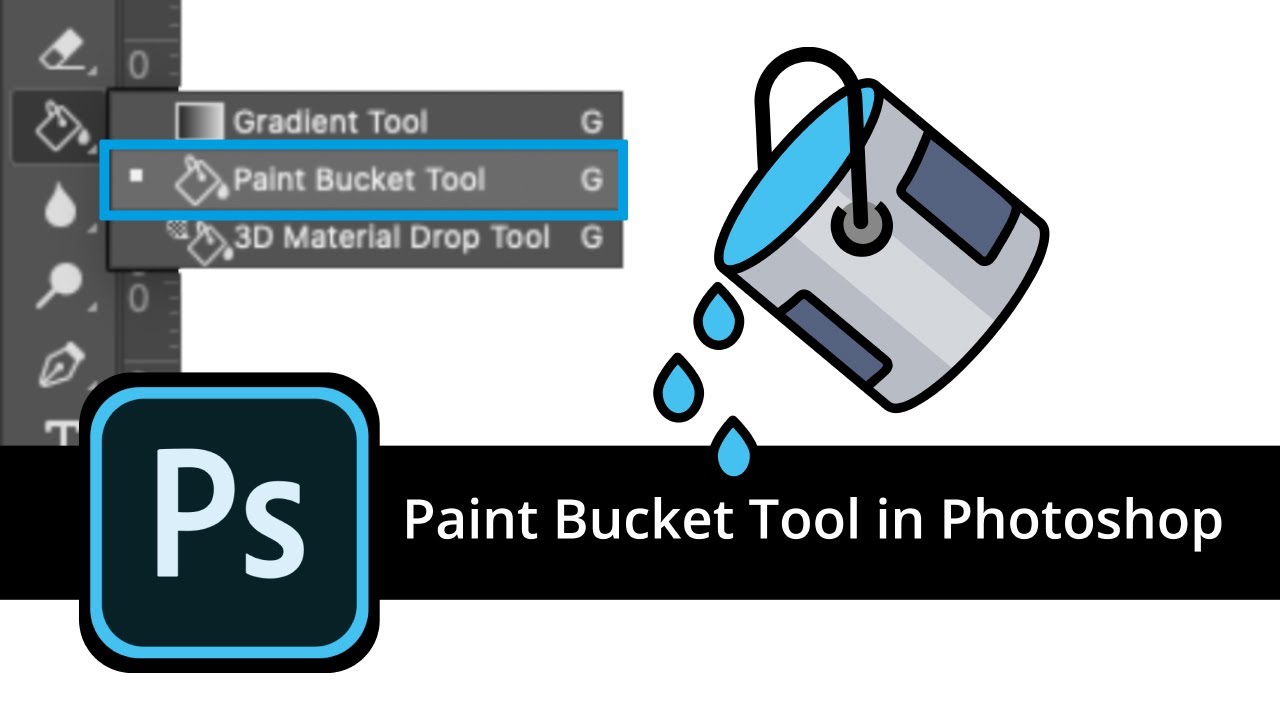
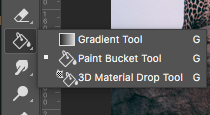
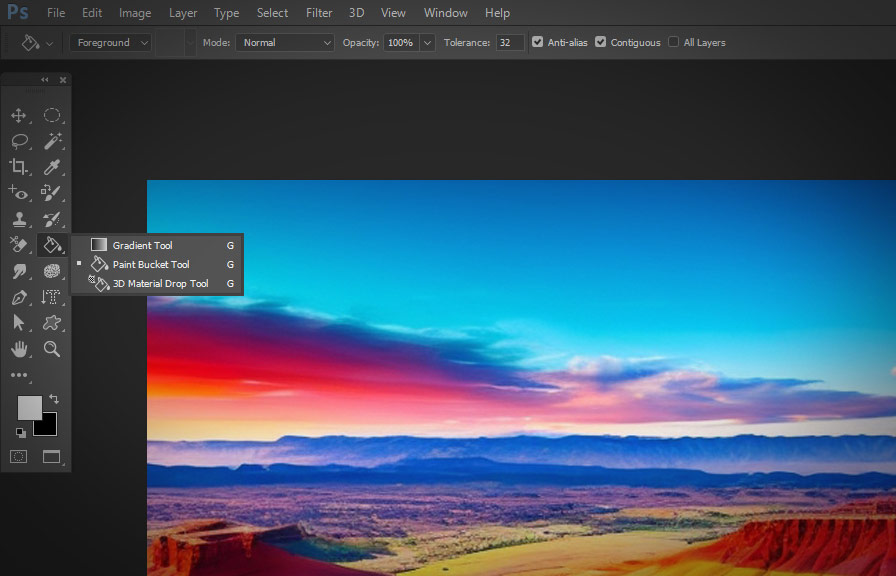
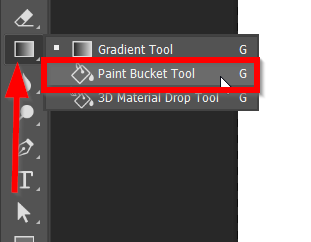
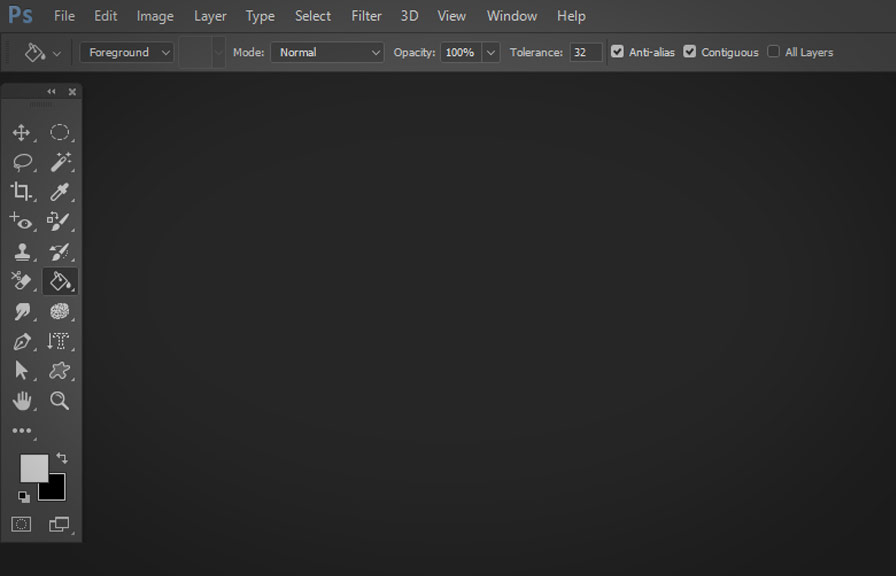
The Paint Bucket Tool is usually hidden underneath the Gradient Tool. Here is how to find it:
- Look for the Gradient Tool icon (it looks like a rectangle fading from one color to another) in your main Toolbar on the left.
- Click and hold down the mouse button on the Gradient Tool icon for a moment. A small fly-out menu will appear.
- Select the Paint Bucket Tool from this menu.
- Alternatively, the keyboard shortcut for both the Gradient and Paint Bucket Tool is simply the letter G. If you press G repeatedly, it will toggle between the two tools.
Once selected, the icon at the top of your screen (the Options Bar) will change to show the specific settings for the Paint Bucket Tool.
Setting Up Your Foreground Color
The Paint Bucket Tool always fills with your current Foreground Color. Therefore, you must select the color you want to use before you click to fill.
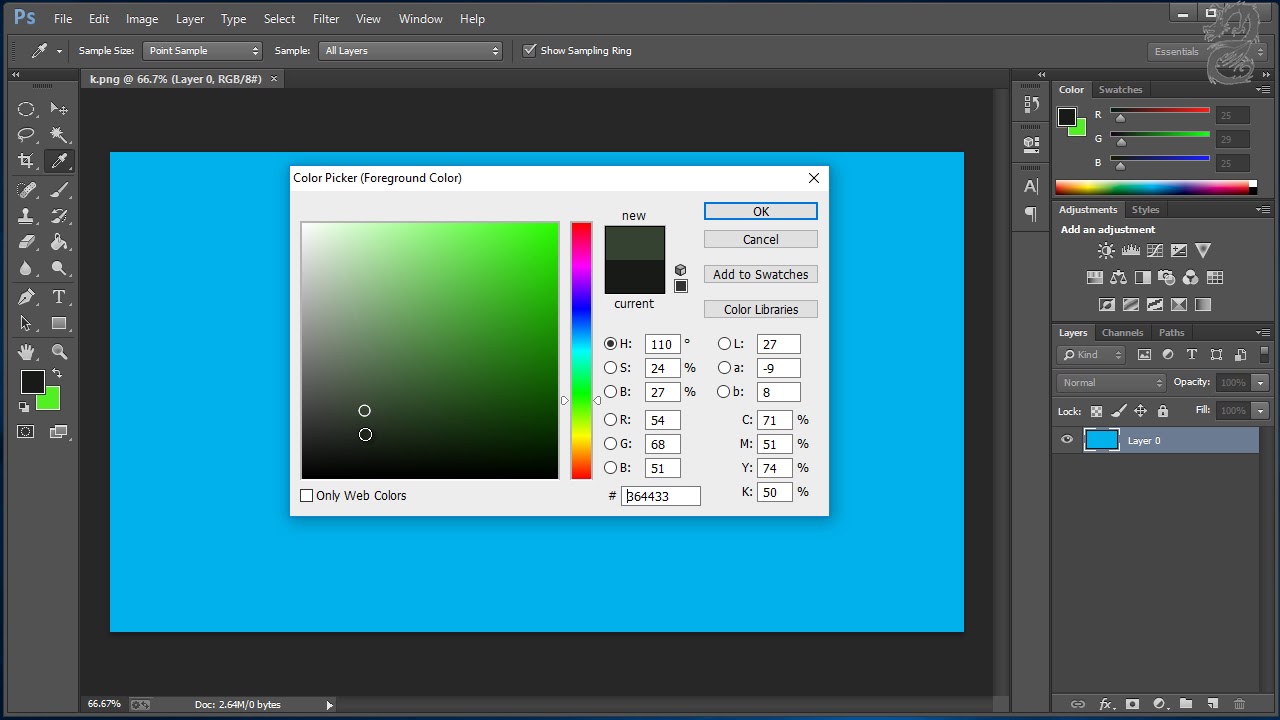
In the bottom of your Toolbar, you will see two overlapping color squares. The top square represents the Foreground Color, and the bottom square represents the Background Color. Follow these steps to set your color:
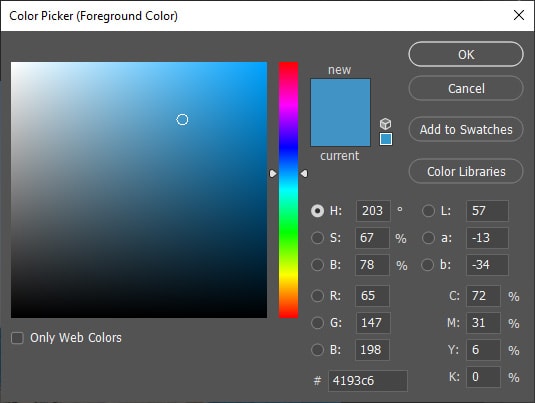
- Click on the Foreground Color square. This opens the Color Picker dialog box.
- Select your desired hue and saturation.
- Click OK.
Your Paint Bucket is now loaded and ready to pour! This simple step is vital for ensuring your final result matches your vision.
Adjusting Paint Bucket Tool Settings (Tolerance and Anti-alias)
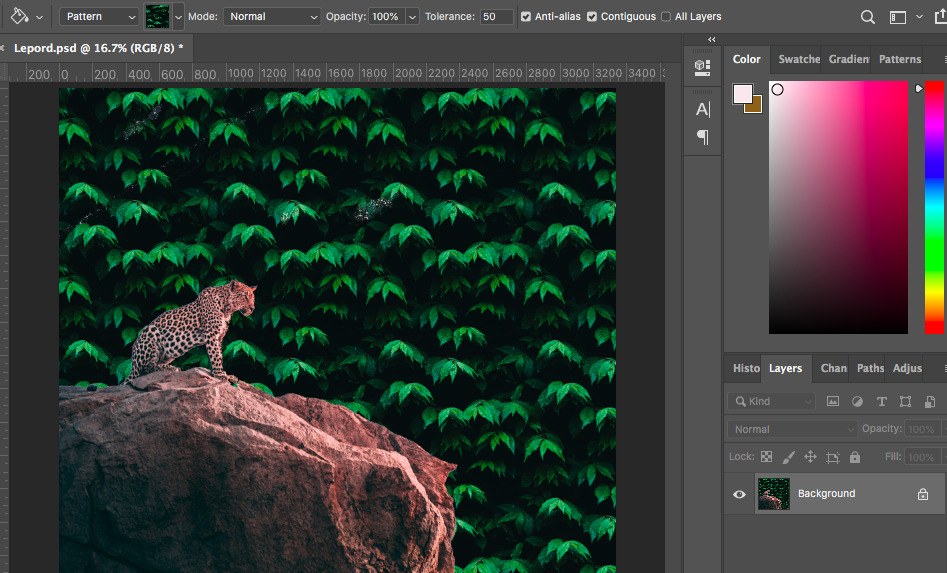
The Options Bar at the top of the Photoshop interface contains all the powerful settings that dictate precisely how the tool functions. Most new users skip this step, which leads to frustrating results.
Look for the following key settings in the Options Bar, located right under the main menu.
Mastering the Tolerance Setting
Tolerance is arguably the most critical setting when learning How To Use Paint Bucket In Photoshop. It determines the range of color similarity the tool will accept and fill.
The Tolerance is measured on a scale from 0 to 255. Think of it like a sensitivity setting:
- Low Tolerance (e.g., 0-30): The tool will only fill pixels that are extremely close in color to the pixel you initially clicked on. Use this when you need to fill a very specific shade within a colorful area.
- High Tolerance (e.g., 100-255): The tool will fill a wide range of colors. A setting of 255 will basically fill the entire layer, regardless of the colors present.
- Default Setting (32): This is a decent starting point for most simple backgrounds.
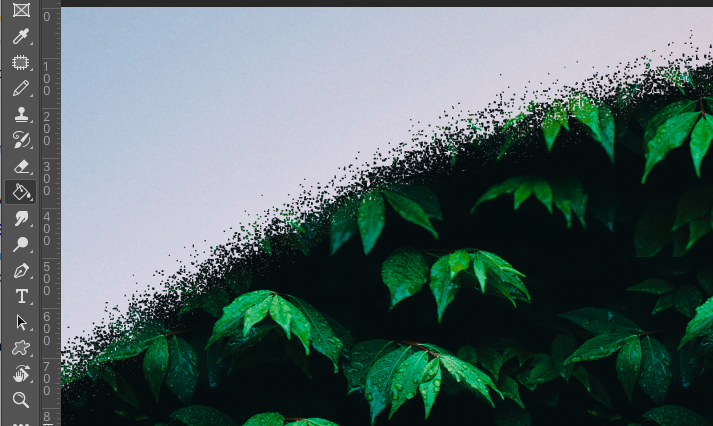
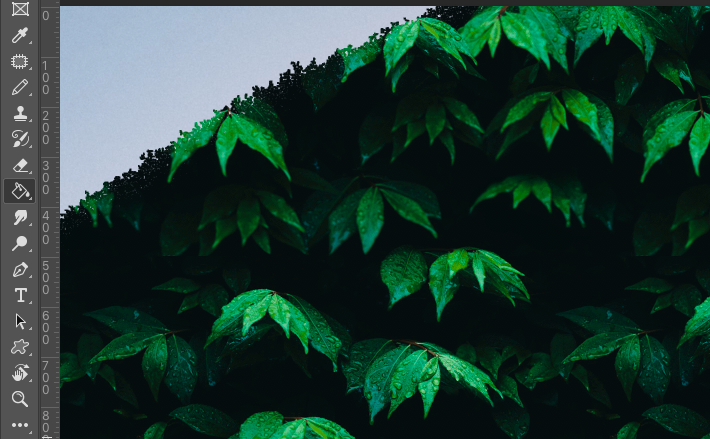
If your color leaks into unintended areas, lower the tolerance. If the fill is patchy and doesn't cover everything it should, increase the tolerance slightly.
Understanding the 'Contiguous' Option
The Contiguous checkbox changes how the tool looks for pixels to fill. This is vital when dealing with line art or detailed drawings.
- Contiguous Checked (Default): The tool will only fill pixels that are touching (contiguous) the initial click point AND fall within the set Tolerance range. If a color area is separated by a black line, the fill will stop at that line.
- Contiguous Unchecked: The tool will fill all pixels on the layer that fall within the set Tolerance range, regardless of whether they are physically touching the click point or not. This is useful if you want to change every instance of a specific shade of blue across the entire image at once.
For filling objects bounded by lines, always ensure the Contiguous box is checked.
Advanced Tips for Using the Paint Bucket Tool
To really maximize your efficiency and maintain flexibility, you need to incorporate two professional habits when using the Paint Bucket Tool.
Always Work on Separate Layers
Never apply the paint bucket fill directly onto the same layer as your line art or photo. If you fill on the same layer, you risk permanently destroying detail and flexibility. Instead, create a new, blank layer beneath your line art layer.
This allows you to easily edit the color fill later without affecting the original artwork. Furthermore, if you make a mistake, you can simply delete the color layer.
Using Selections for Precision
If you need to fill a complex shape, relying only on Tolerance can be risky. A much safer method is to use a selection tool (like the Lasso Tool or Marquee Tool) first. Draw a precise selection around the area you want to fill.
Once an area is selected, the Paint Bucket Tool will restrict its fill operation entirely within those "marching ants" boundaries, ignoring the Tolerance setting outside the selection. This guarantees a clean, precise fill every time.
Conclusion
Mastering How To Use Paint Bucket In Photoshop is simple once you understand the core settings of Tolerance and Contiguous. This tool is an absolute time-saver for anyone needing quick, solid color fills.
Remember to always use separate layers for your colors to ensure non-destructive editing, and don't hesitate to adjust the Tolerance setting based on the complexity of the image you are working on. Go ahead, give it a try—your workflow just got a whole lot faster!
Frequently Asked Questions (FAQ)
- Why is the Paint Bucket Tool missing in my toolbar?
- It is likely nested beneath the Gradient Tool. Click and hold the Gradient icon (which looks like a color fade) to reveal the Paint Bucket option in the fly-out menu. You can also press the G key repeatedly to cycle through the tools in that slot.
- Why does the color leak outside the area I clicked?
- This is usually due to a Tolerance setting that is too high. If your Tolerance is set too high (e.g., above 50), the tool treats colors that are dissimilar as similar, causing the fill to spill. Try reducing the Tolerance value to 32 or less.
- The Paint Bucket isn't filling the entire area; there are patches left behind.
- This happens if the Tolerance setting is too low (e.g., 0-10). The tool perceives the subtle variations in color within the area as boundaries and stops the fill prematurely. Increase the Tolerance setting, or ensure the area you are trying to fill is completely uniform.
- How do I change the color it fills with?
- The Paint Bucket Tool always uses the Foreground Color. Click the top color square in your Toolbar to open the Color Picker and select the new color before applying the fill.
How To Use Paint Bucket In Photoshop
How To Use Paint Bucket In Photoshop Wallpapers
Collection of how to use paint bucket in photoshop wallpapers for your desktop and mobile devices.
Serene How To Use Paint Bucket In Photoshop Photo Photography
Discover an amazing how to use paint bucket in photoshop background image, ideal for personalizing your devices with vibrant colors and intricate designs.

Gorgeous How To Use Paint Bucket In Photoshop Design Digital Art
A captivating how to use paint bucket in photoshop scene that brings tranquility and beauty to any device.
Crisp How To Use Paint Bucket In Photoshop Image Digital Art
This gorgeous how to use paint bucket in photoshop photo offers a breathtaking view, making it a perfect choice for your next wallpaper.
Stunning How To Use Paint Bucket In Photoshop Artwork for Your Screen
Immerse yourself in the stunning details of this beautiful how to use paint bucket in photoshop wallpaper, designed for a captivating visual experience.
Beautiful How To Use Paint Bucket In Photoshop Artwork for Mobile
Explore this high-quality how to use paint bucket in photoshop image, perfect for enhancing your desktop or mobile wallpaper.

Vivid How To Use Paint Bucket In Photoshop Capture for Mobile
Experience the crisp clarity of this stunning how to use paint bucket in photoshop image, available in high resolution for all your screens.

Serene How To Use Paint Bucket In Photoshop Wallpaper Nature
Explore this high-quality how to use paint bucket in photoshop image, perfect for enhancing your desktop or mobile wallpaper.
Beautiful How To Use Paint Bucket In Photoshop Wallpaper in HD
Explore this high-quality how to use paint bucket in photoshop image, perfect for enhancing your desktop or mobile wallpaper.
Crisp How To Use Paint Bucket In Photoshop View in HD
Find inspiration with this unique how to use paint bucket in photoshop illustration, crafted to provide a fresh look for your background.
Artistic How To Use Paint Bucket In Photoshop Abstract in 4K
Find inspiration with this unique how to use paint bucket in photoshop illustration, crafted to provide a fresh look for your background.

Exquisite How To Use Paint Bucket In Photoshop Background Illustration
Find inspiration with this unique how to use paint bucket in photoshop illustration, crafted to provide a fresh look for your background.
Vibrant How To Use Paint Bucket In Photoshop Photo Concept
Experience the crisp clarity of this stunning how to use paint bucket in photoshop image, available in high resolution for all your screens.

Exquisite How To Use Paint Bucket In Photoshop Scene for Mobile
Immerse yourself in the stunning details of this beautiful how to use paint bucket in photoshop wallpaper, designed for a captivating visual experience.
Breathtaking How To Use Paint Bucket In Photoshop Design Photography
Experience the crisp clarity of this stunning how to use paint bucket in photoshop image, available in high resolution for all your screens.
Stunning How To Use Paint Bucket In Photoshop Picture Illustration
Immerse yourself in the stunning details of this beautiful how to use paint bucket in photoshop wallpaper, designed for a captivating visual experience.

Lush How To Use Paint Bucket In Photoshop Abstract Collection
Find inspiration with this unique how to use paint bucket in photoshop illustration, crafted to provide a fresh look for your background.
Serene How To Use Paint Bucket In Photoshop View Nature
Experience the crisp clarity of this stunning how to use paint bucket in photoshop image, available in high resolution for all your screens.
Captivating How To Use Paint Bucket In Photoshop Scene Digital Art
A captivating how to use paint bucket in photoshop scene that brings tranquility and beauty to any device.

Lush How To Use Paint Bucket In Photoshop Background for Mobile
This gorgeous how to use paint bucket in photoshop photo offers a breathtaking view, making it a perfect choice for your next wallpaper.

Beautiful How To Use Paint Bucket In Photoshop Moment Concept
Transform your screen with this vivid how to use paint bucket in photoshop artwork, a true masterpiece of digital design.
Download these how to use paint bucket in photoshop wallpapers for free and use them on your desktop or mobile devices.