Windows 10: When you should update and what it means for you
Windows 10: When you should update and what it means for you
Staying on top of your operating system's health is crucial in today's digital landscape. As a Windows 10 user, you're constantly presented with updates, and it's natural to wonder about their importance, timing, and impact. This article will guide you through Windows 10: When you should update and what it means for you, ensuring you make informed decisions to keep your PC secure, stable, and performing its best.
We'll cut through the confusion and provide a clear roadmap for navigating the world of Windows 10 updates. From critical security patches to new feature rollouts, understanding when and why to update is key to a smooth computing experience. Let's dive into what these updates entail and how they affect your daily digital life.
Understanding Windows 10 Updates
Windows 10 updates are more than just minor tweaks; they are a continuous effort by Microsoft to enhance your operating system. These updates typically fall into several categories, each serving a distinct purpose in improving your PC's functionality and security. Neglecting them can leave your system vulnerable and outdated.
At their core, updates deliver a mix of security fixes, performance improvements, bug resolutions, and entirely new features. They are designed to adapt your system to the evolving digital environment, addressing new threats and integrating the latest technological advancements. Understanding these different types will help you grasp their significance.
The Different Types of Updates
To effectively manage your Windows 10 experience, it's essential to differentiate between the various update types. Each has a unique cadence and impact on your system. Knowing what to expect from each can help you anticipate changes and prepare accordingly.
Feature Updates
Feature updates are the most significant updates, typically released once or twice a year. They introduce major new functionalities, interface changes, and substantial improvements to existing features. Think of them as new versions of Windows 10, bringing fresh capabilities and often requiring a longer installation time.
Examples include versions like 21H2 or 22H2, which not only enhance performance but also introduce entirely new tools and user experience refinements. While exciting, these large updates can sometimes introduce temporary compatibility issues, making careful timing important. However, they are crucial for keeping your Windows 10 system modern and capable.
Quality Updates
Quality updates, often referred to as cumulative updates, are released monthly, usually on the second Tuesday (Patch Tuesday). These are smaller, more frequent updates primarily focused on security patches, bug fixes, and reliability improvements. They address vulnerabilities and ensure your system remains protected against the latest threats.
These updates are critical for maintaining your system's security posture. They are generally smaller in size and quicker to install than feature updates, though they still require a restart. It's highly recommended to install these quality updates promptly to safeguard your data and privacy.
Beyond these, you might encounter optional updates, which are preview versions of upcoming quality updates or driver updates. While not strictly necessary, they can be useful for advanced users or those experiencing specific hardware issues.
When Should You Update? The Timing is Key
Deciding when to update your Windows 10 system is a balance between security, stability, and access to new features. While many updates are installed automatically, some, especially feature updates, give you a window of opportunity to decide. Understanding when you should update and what it means for you in terms of timing can save you headaches.
For security patches and cumulative updates, the general recommendation is to install them as soon as they become available. These updates often fix critical vulnerabilities that hackers could exploit. Delaying these puts your data and system at significant risk.
For larger feature updates, a slightly more cautious approach might be beneficial. While automatic installation is common, you can sometimes defer them. Here are key considerations for feature updates:
- System Stability: New feature updates can occasionally introduce bugs or compatibility issues with specific hardware or software. Waiting a week or two allows others to encounter and report these issues, giving Microsoft time to release fixes.
- Critical Applications: If your PC runs essential software for work or personal tasks, ensure compatibility before updating. Check the software developer's website for known issues with the latest Windows 10 versions.
- Known Issues: Keep an eye on tech news sites or official Microsoft channels for reports of widespread problems following a new feature update.
- Backup Strategy: Always, and we mean always, back up your important data before a major feature update. This is your safety net.
What Happens If You Don't Update? The Risks
Choosing to ignore Windows 10 updates, especially security patches, comes with significant risks. While it might seem convenient to skip restarts and avoid potential glitches, the long-term consequences can be severe. Your system becomes a prime target for malicious actors.
Without the latest security updates, your PC is vulnerable to newly discovered exploits, malware, and ransomware. Furthermore, you'll miss out on crucial performance enhancements and bug fixes that make your system run smoother and more efficiently. Outdated systems can also experience compatibility issues with new software and hardware, limiting your capabilities.
Preparing for a Smooth Update
A little preparation can go a long way in ensuring your Windows 10 update process is seamless. These steps are particularly important for major feature updates but are good practice for any significant system change. Taking these precautions can mitigate most common update problems.
- Backup Your Data: This is paramount. Use an external hard drive or cloud service to back up all your critical files.
- Free Up Disk Space: Ensure you have at least 20-30 GB of free space for major updates. Windows needs this space for temporary files and the update installation.
- Check for Driver Updates: Outdated drivers are a common cause of post-update issues. Visit your PC manufacturer's website or device manager to check for updates for critical components like graphics cards and chipsets.
- Ensure Stable Power: For laptops, make sure it's plugged in. For desktops, avoid updating during power fluctuations.
- Close All Applications: Before starting an update, close all open programs to prevent conflicts.
Practical Steps for Updating Your Windows 10 System
Actually performing the update is straightforward once you've prepared. Windows 10 is designed to make this process as user-friendly as possible. Here's a quick guide:
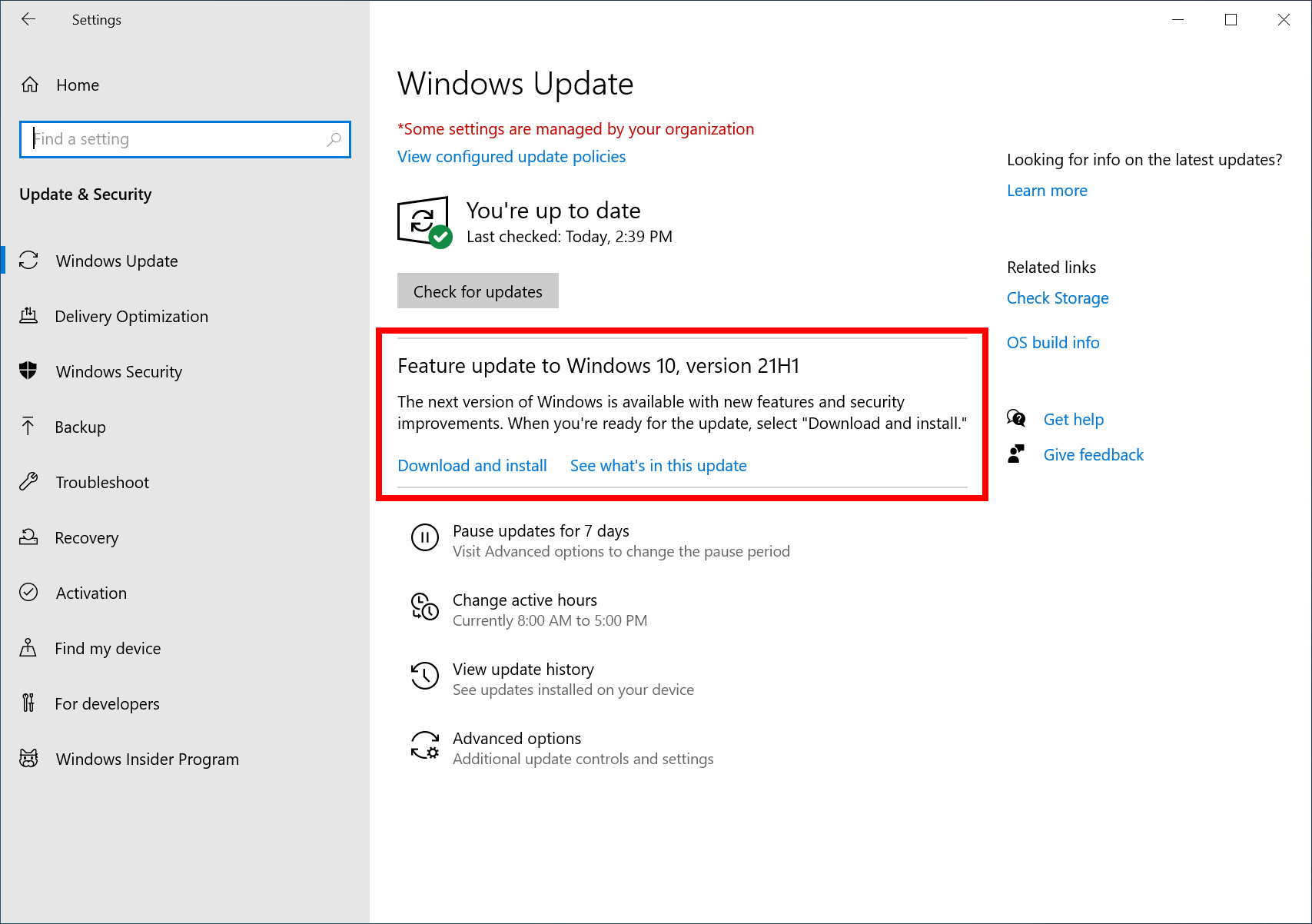
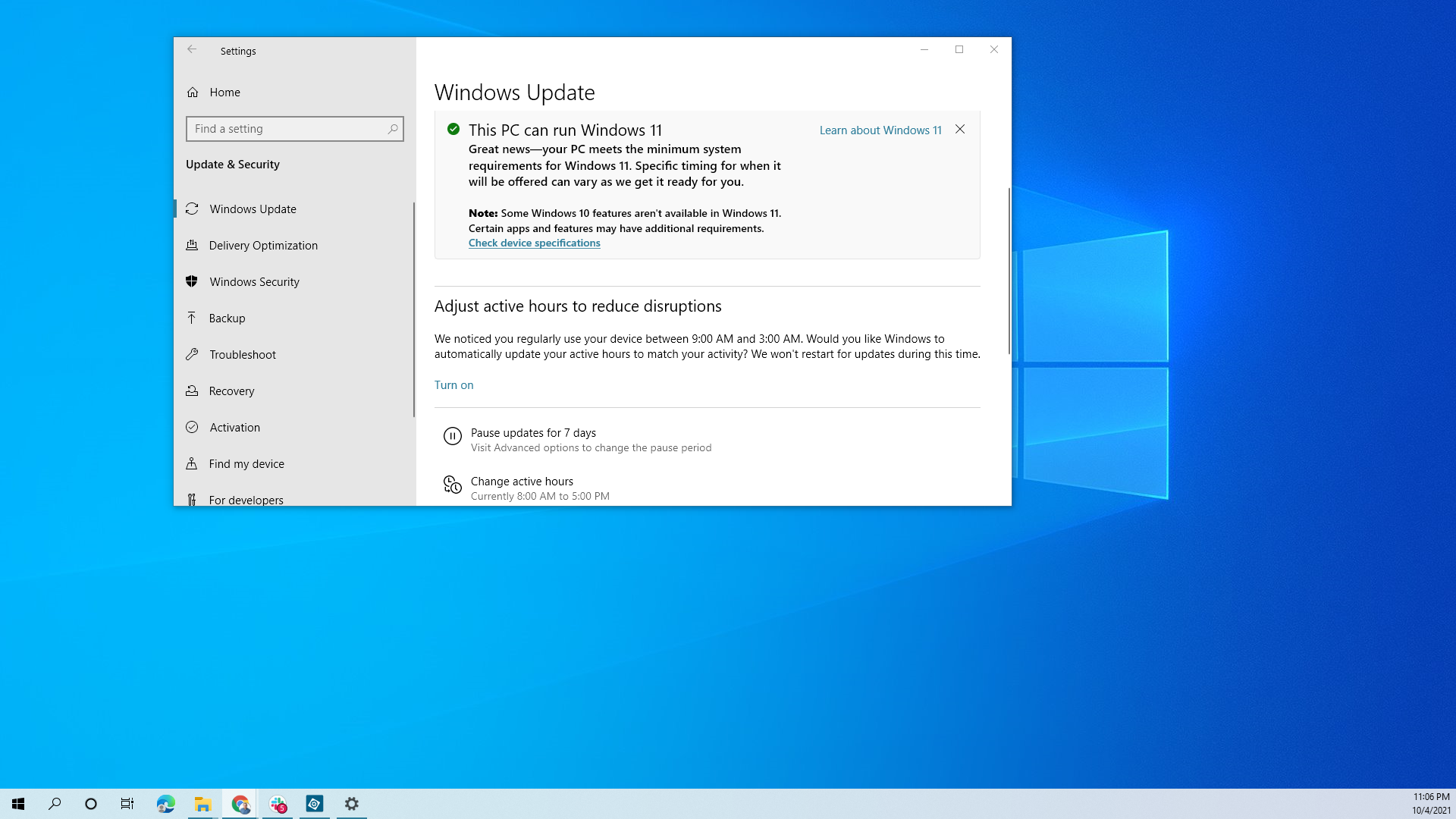
1. Go to Settings (Windows Key + I).
2. Click on Update & Security.
3. Select Windows Update from the left-hand menu.
4. Click the "Check for updates" button. Windows will then search for, download, and prepare any available updates.
5. Follow the on-screen prompts to install the updates. This will usually require a restart. Choose a time when you won't need your computer for a while.
What It Means For You: Benefits and Considerations
Beyond the technicalities, understanding what it means for you as a user to keep your Windows 10 updated is paramount. The benefits extend far beyond just patching security holes; they actively contribute to a better, more efficient, and more enjoyable computing experience. This is about empowering your digital life.
Firstly, you gain enhanced security. In an age of increasing cyber threats, timely updates are your first line of defense, protecting your personal data and privacy. Secondly, you unlock new features, which can boost your productivity or offer new entertainment options. Microsoft is constantly innovating, and updates bring these innovations directly to your desktop.
Furthermore, you often see performance improvements. Updates frequently include optimizations that make your system run faster, smoother, and more efficiently, extending the life of your hardware. Finally, you ensure compatibility with the latest software and hardware. As technology evolves, keeping Windows 10 current prevents frustrating compatibility issues, making sure your new gadgets and programs work seamlessly.
Navigating Potential Issues After an Update
While most updates go smoothly, it's wise to be prepared for the rare occasion when an update causes issues. Knowing how to troubleshoot or even revert an update can save you significant stress. This is part of the "what it means for you" aspect of being an informed Windows 10 user.
- How to Rollback: If an update causes severe problems, Windows 10 offers an option to uninstall it. Go to Settings > Update & Security > Windows Update > View update history > Uninstall updates. You can also revert to a previous feature version within 10 days of installation via Settings > Update & Security > Recovery.
- Checking for Driver Conflicts: Device Manager (right-click Start button) can help identify if any drivers are causing issues. Look for yellow exclamation marks.
- Using System Restore: If enabled, System Restore can revert your system to a previous state without affecting your personal files. Search for "Create a restore point" in the Start menu.
- Safe Mode: If your PC won't boot correctly, try booting into Safe Mode to troubleshoot.
Conclusion
Understanding Windows 10: When you should update and what it means for you is not just about keeping your software current; it's about safeguarding your digital life and maximizing your PC's potential. Regular updates are the cornerstone of a secure, stable, and high-performing computing experience. Prioritizing security patches and approaching feature updates with a cautious yet informed mindset is the smartest strategy.
By taking a few proactive steps like backing up your data and checking for compatibility, you can smoothly navigate the update process. Embracing updates means you'll continually benefit from Microsoft's latest security enhancements, performance optimizations, and innovative features, ensuring your Windows 10 machine remains a powerful and reliable tool for all your needs.
Frequently Asked Questions (FAQ)
- How often do Windows 10 updates come out?
- Quality (security and bug fix) updates are typically released once a month, on "Patch Tuesday" (the second Tuesday of the month). Feature updates, which introduce new functionalities, are generally released once or twice a year.
- Can I stop Windows 10 from updating?
- While you can pause updates for a limited period (e.g., up to 35 days in Home editions, longer in Pro/Enterprise), completely stopping them permanently is not recommended due to security risks. Windows 10 is designed for continuous updates to ensure security and functionality.
- What if an update breaks my system?
- In rare cases, an update might cause issues. You can usually uninstall a problematic update via Settings > Update & Security > Windows Update > View update history > Uninstall updates. For major feature updates, you might have a 10-day window to revert to the previous version via Recovery settings. Always back up your data before major updates.
- Is it safe to install updates immediately?
- For monthly quality updates (security patches), immediate installation is generally recommended to protect against known vulnerabilities. For larger feature updates, some users prefer to wait a week or two to see if any widespread issues are reported by early adopters, allowing Microsoft time to issue fixes if necessary.
- How long does a typical update take?
- Quality updates are usually quicker, taking 5-15 minutes plus a restart. Feature updates are more substantial and can take anywhere from 30 minutes to a few hours, depending on your system's speed, internet connection, and the size of the update. Always set aside enough time and ensure stable power.
Windows 10: When you should update and what it means for you
Windows 10: When you should update and what it means for you Wallpapers
Collection of windows 10: when you should update and what it means for you wallpapers for your desktop and mobile devices.
Detailed Windows 10: When You Should Update And What It Means For You Design in HD
Discover an amazing windows 10: when you should update and what it means for you background image, ideal for personalizing your devices with vibrant colors and intricate designs.

High-Quality Windows 10: When You Should Update And What It Means For You Background Collection
Experience the crisp clarity of this stunning windows 10: when you should update and what it means for you image, available in high resolution for all your screens.
Dynamic Windows 10: When You Should Update And What It Means For You Wallpaper Collection
A captivating windows 10: when you should update and what it means for you scene that brings tranquility and beauty to any device.

Gorgeous Windows 10: When You Should Update And What It Means For You Image for Mobile
This gorgeous windows 10: when you should update and what it means for you photo offers a breathtaking view, making it a perfect choice for your next wallpaper.
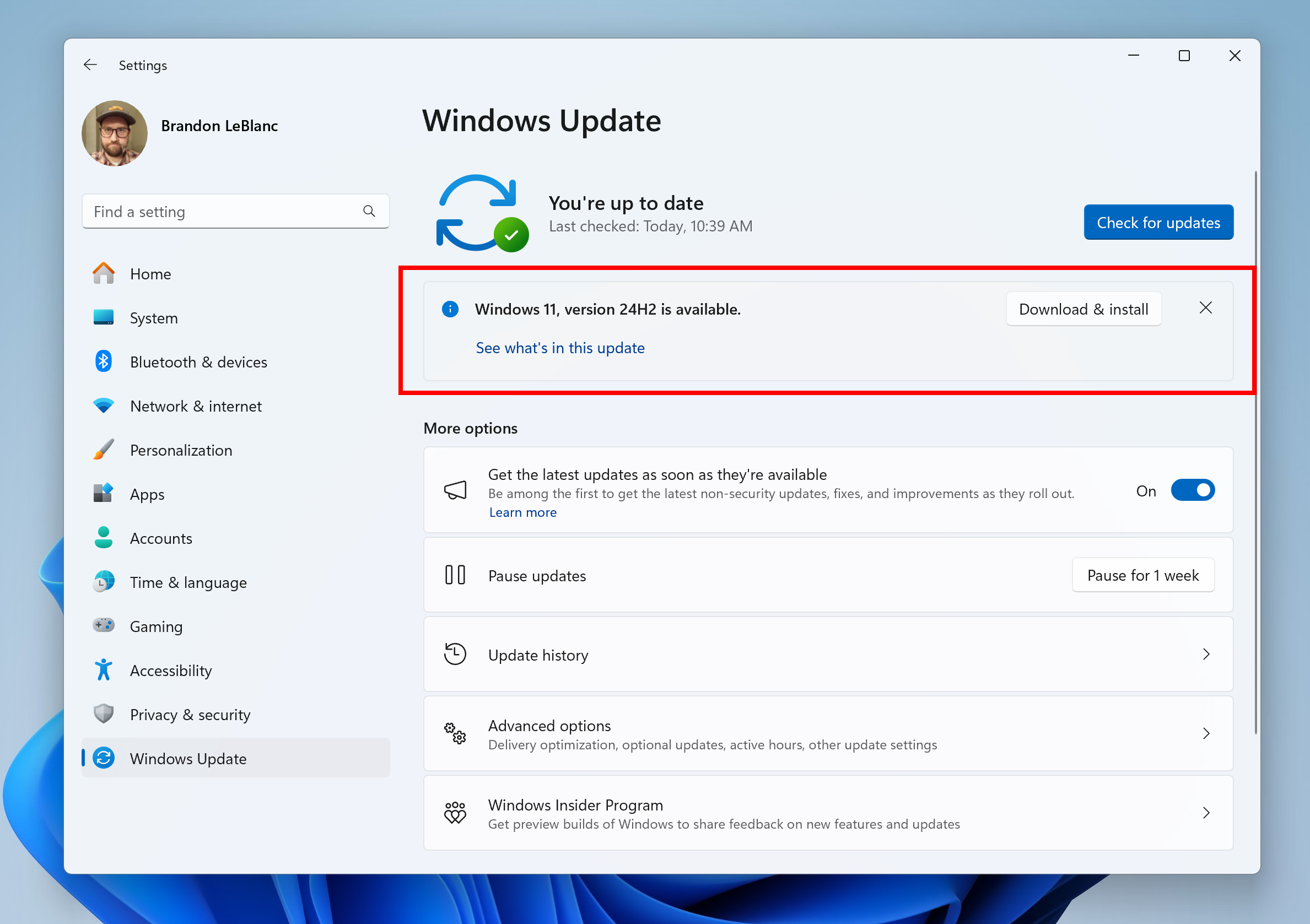
Stunning Windows 10: When You Should Update And What It Means For You Photo Concept
Find inspiration with this unique windows 10: when you should update and what it means for you illustration, crafted to provide a fresh look for your background.
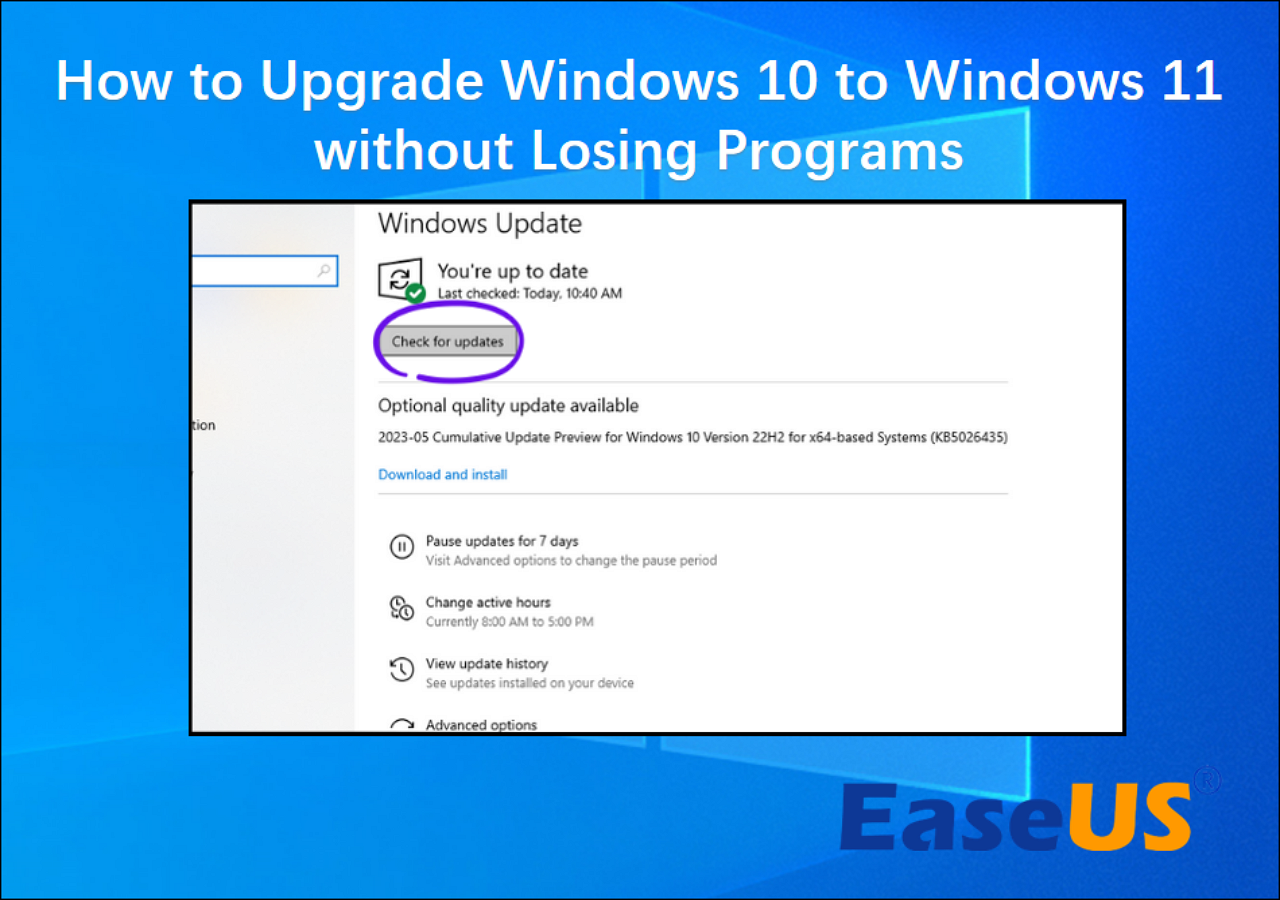
Stunning Windows 10: When You Should Update And What It Means For You Landscape Illustration
Find inspiration with this unique windows 10: when you should update and what it means for you illustration, crafted to provide a fresh look for your background.

Breathtaking Windows 10: When You Should Update And What It Means For You Landscape in 4K
Discover an amazing windows 10: when you should update and what it means for you background image, ideal for personalizing your devices with vibrant colors and intricate designs.
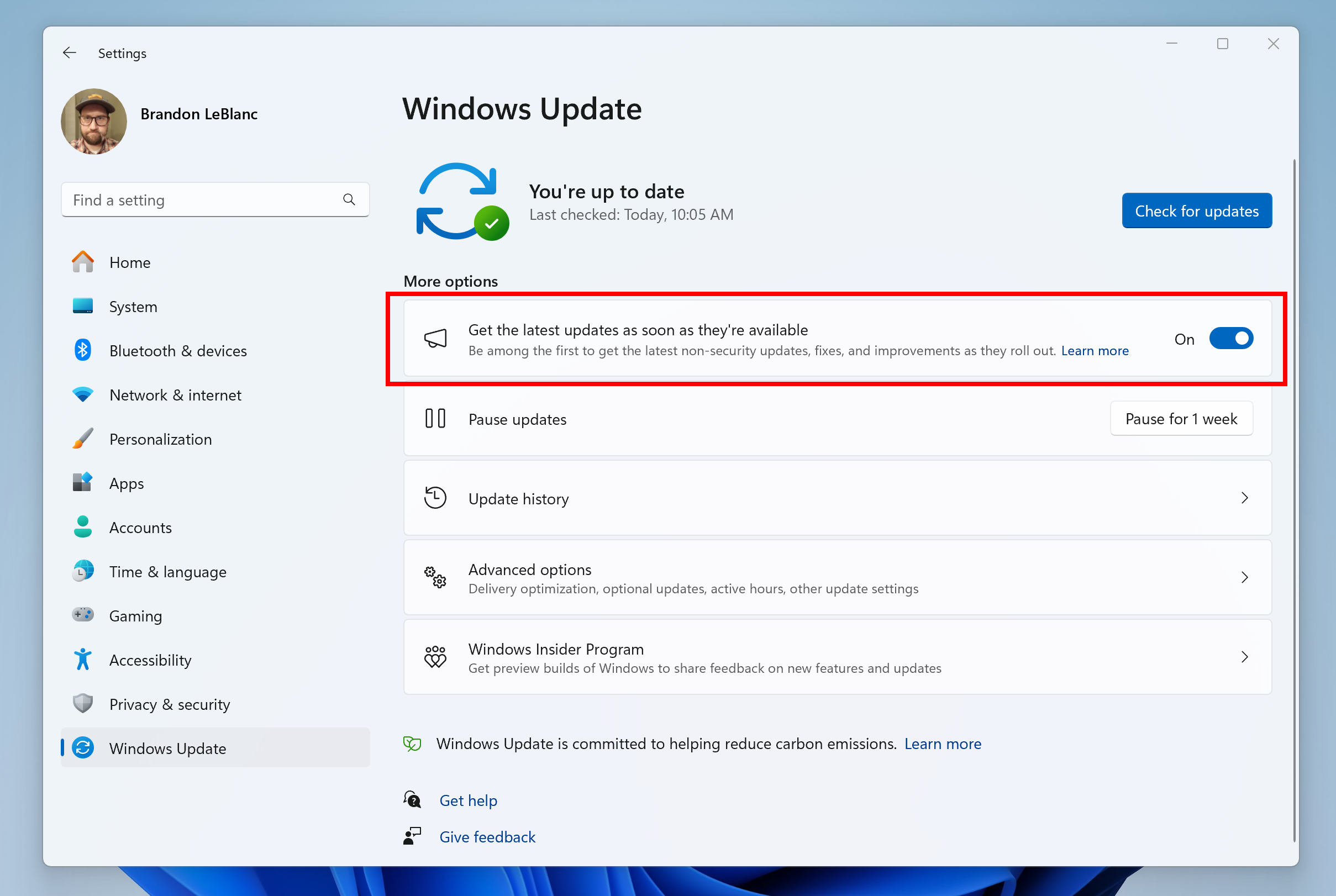
Gorgeous Windows 10: When You Should Update And What It Means For You Wallpaper for Your Screen
This gorgeous windows 10: when you should update and what it means for you photo offers a breathtaking view, making it a perfect choice for your next wallpaper.

Captivating Windows 10: When You Should Update And What It Means For You Moment Collection
Immerse yourself in the stunning details of this beautiful windows 10: when you should update and what it means for you wallpaper, designed for a captivating visual experience.

Serene Windows 10: When You Should Update And What It Means For You Image Nature
Experience the crisp clarity of this stunning windows 10: when you should update and what it means for you image, available in high resolution for all your screens.
Amazing Windows 10: When You Should Update And What It Means For You Image Nature
Explore this high-quality windows 10: when you should update and what it means for you image, perfect for enhancing your desktop or mobile wallpaper.
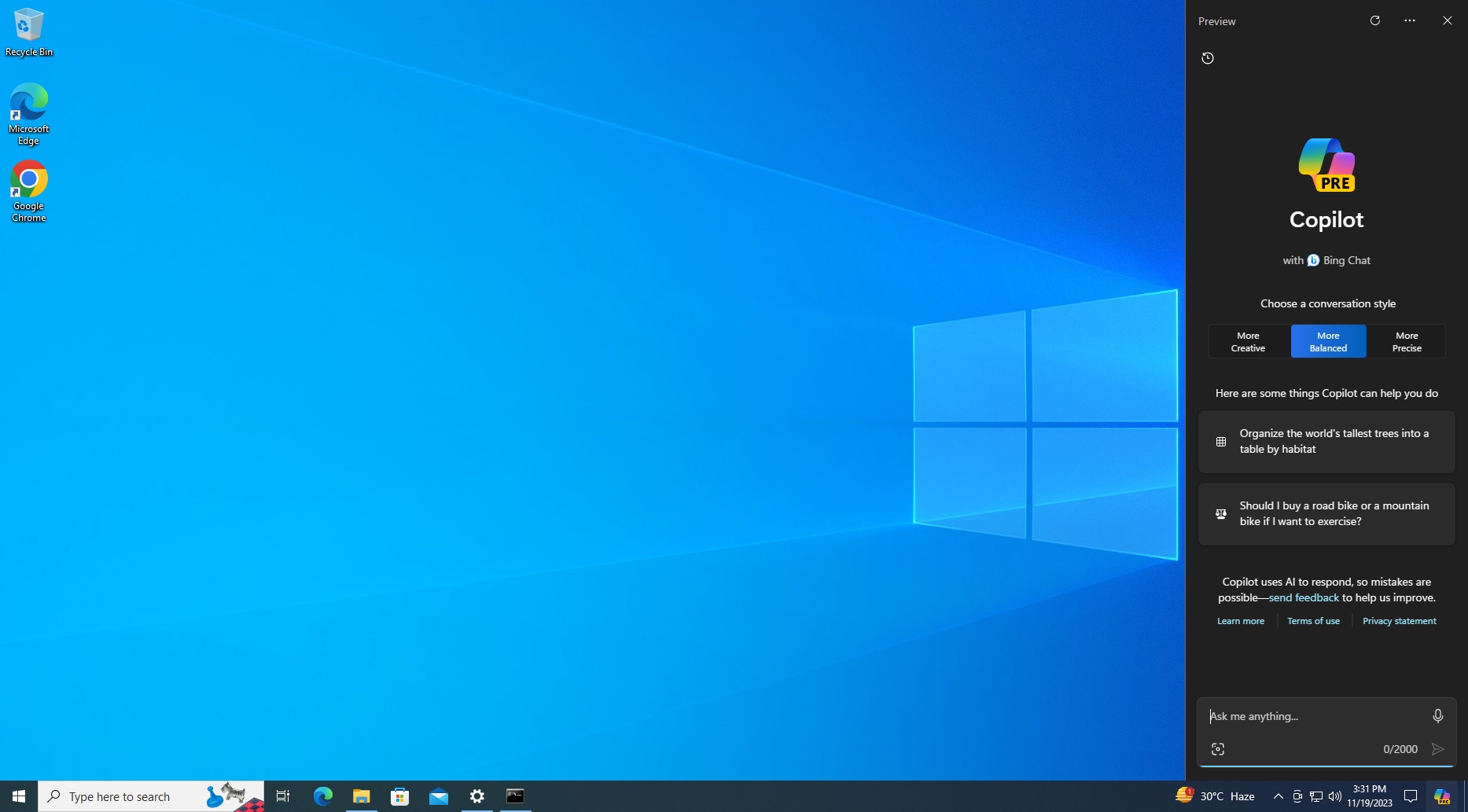
Mesmerizing Windows 10: When You Should Update And What It Means For You Background in HD
Experience the crisp clarity of this stunning windows 10: when you should update and what it means for you image, available in high resolution for all your screens.
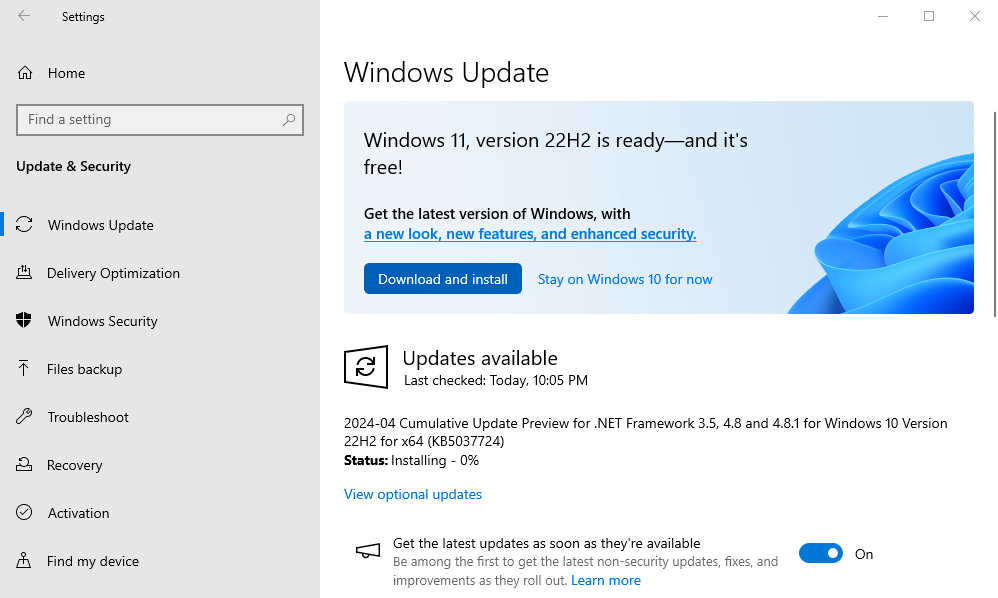
Lush Windows 10: When You Should Update And What It Means For You Design Concept
Find inspiration with this unique windows 10: when you should update and what it means for you illustration, crafted to provide a fresh look for your background.
Beautiful Windows 10: When You Should Update And What It Means For You Design Nature
Experience the crisp clarity of this stunning windows 10: when you should update and what it means for you image, available in high resolution for all your screens.
Captivating Windows 10: When You Should Update And What It Means For You Landscape in HD
This gorgeous windows 10: when you should update and what it means for you photo offers a breathtaking view, making it a perfect choice for your next wallpaper.
Exquisite Windows 10: When You Should Update And What It Means For You Background for Your Screen
A captivating windows 10: when you should update and what it means for you scene that brings tranquility and beauty to any device.
Captivating Windows 10: When You Should Update And What It Means For You Capture Illustration
This gorgeous windows 10: when you should update and what it means for you photo offers a breathtaking view, making it a perfect choice for your next wallpaper.

High-Quality Windows 10: When You Should Update And What It Means For You Landscape for Your Screen
Explore this high-quality windows 10: when you should update and what it means for you image, perfect for enhancing your desktop or mobile wallpaper.
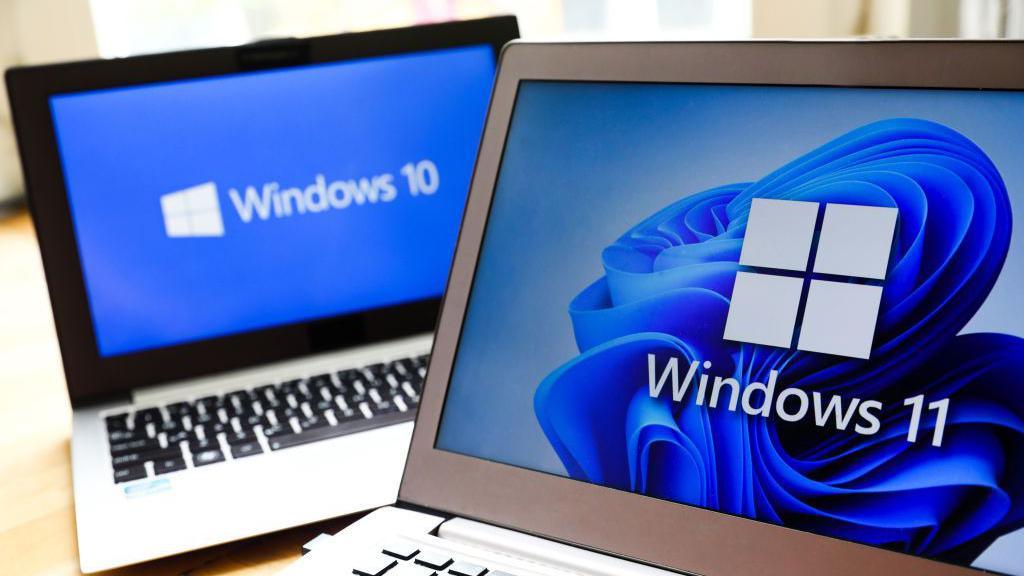
Amazing Windows 10: When You Should Update And What It Means For You Landscape Art
Transform your screen with this vivid windows 10: when you should update and what it means for you artwork, a true masterpiece of digital design.

Spectacular Windows 10: When You Should Update And What It Means For You Scene for Your Screen
A captivating windows 10: when you should update and what it means for you scene that brings tranquility and beauty to any device.
Download these windows 10: when you should update and what it means for you wallpapers for free and use them on your desktop or mobile devices.