How To Block Unnecessary Websites
How To Block Unnecessary Websites
Ever find yourself constantly distracted by certain websites, losing precious time during work or study? Or maybe you want to ensure your kids aren't accessing inappropriate content? Learning how to block unnecessary websites is a skill that can significantly boost your productivity and digital well-being. It might seem complicated, but there are actually several straightforward methods you can use, whether you're a tech wizard or just starting out.
Why Block Websites Anyway?
There are countless reasons why someone would want to block specific sites. From managing screen time to creating a safer online environment, the benefits are clear. Blocking sites can help you regain control of your digital life and achieve your goals more effectively.
- Boost Productivity: Say goodbye to endless scrolling on social media during work hours.
- Enhance Focus: Eliminate distractions when you need to concentrate on important tasks.
- Ensure Safety: Protect children from adult or harmful content.
- Manage Internet Usage: Limit access to sites that consume too much bandwidth or data.
- Break Bad Habits: If you're trying to cut down on a particular online activity, blocking can be a great first step.
Easy Ways to Block Websites
Ready to take action and master how to block unnecessary websites? Let's explore some popular and effective methods. Each option has its pros and cons, so you can choose the one that best fits your needs and technical comfort level. You'll be surprised how simple it can be!
Using Browser Extensions
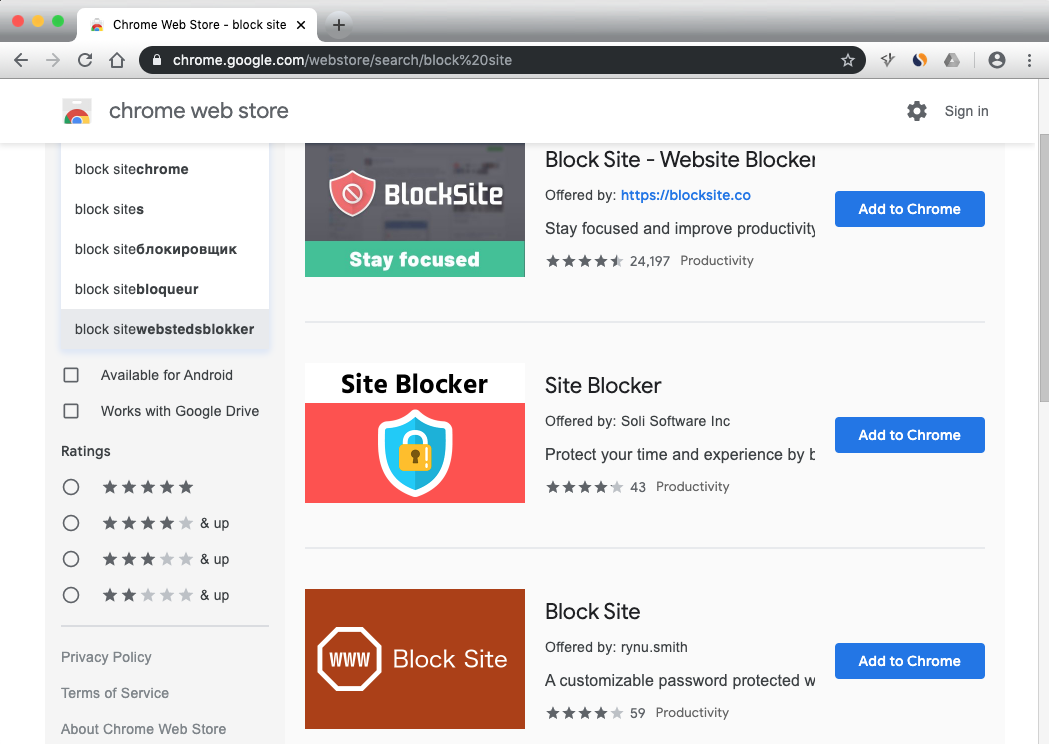
This is arguably the easiest and most popular method for individual users. Browser extensions like "BlockSite" (available for Chrome, Firefox, Edge) allow you to block sites with just a few clicks. They are great for personal productivity and can be easily toggled on or off.
- Search for a reliable "website blocker" extension in your browser's app store (e.g., Chrome Web Store).
- Install the extension onto your browser.
- Open the extension's settings and add the URLs of the websites you want to block.
- Some extensions even offer scheduling features, letting you block sites only during specific hours, or requiring a password to unblock.
Configuring Your Router Settings
Blocking websites at the router level means that *any* device connected to your Wi-Fi network will be affected. This is ideal for household-wide restrictions or for small businesses. The exact steps vary by router brand, but the general idea is similar across most devices.
- Access your router's administration page (usually by typing its IP address, like 192.168.1.1 or 192.168.0.1, into your browser).
- Log in using your administrator credentials (often found on a sticker on the router itself).
- Look for a section named "Parental Controls," "Access Restrictions," or "Security."
- Enter the domain names of the websites you wish to block. Don't forget to save your changes to apply the restrictions.
Editing Your Host File (Advanced)
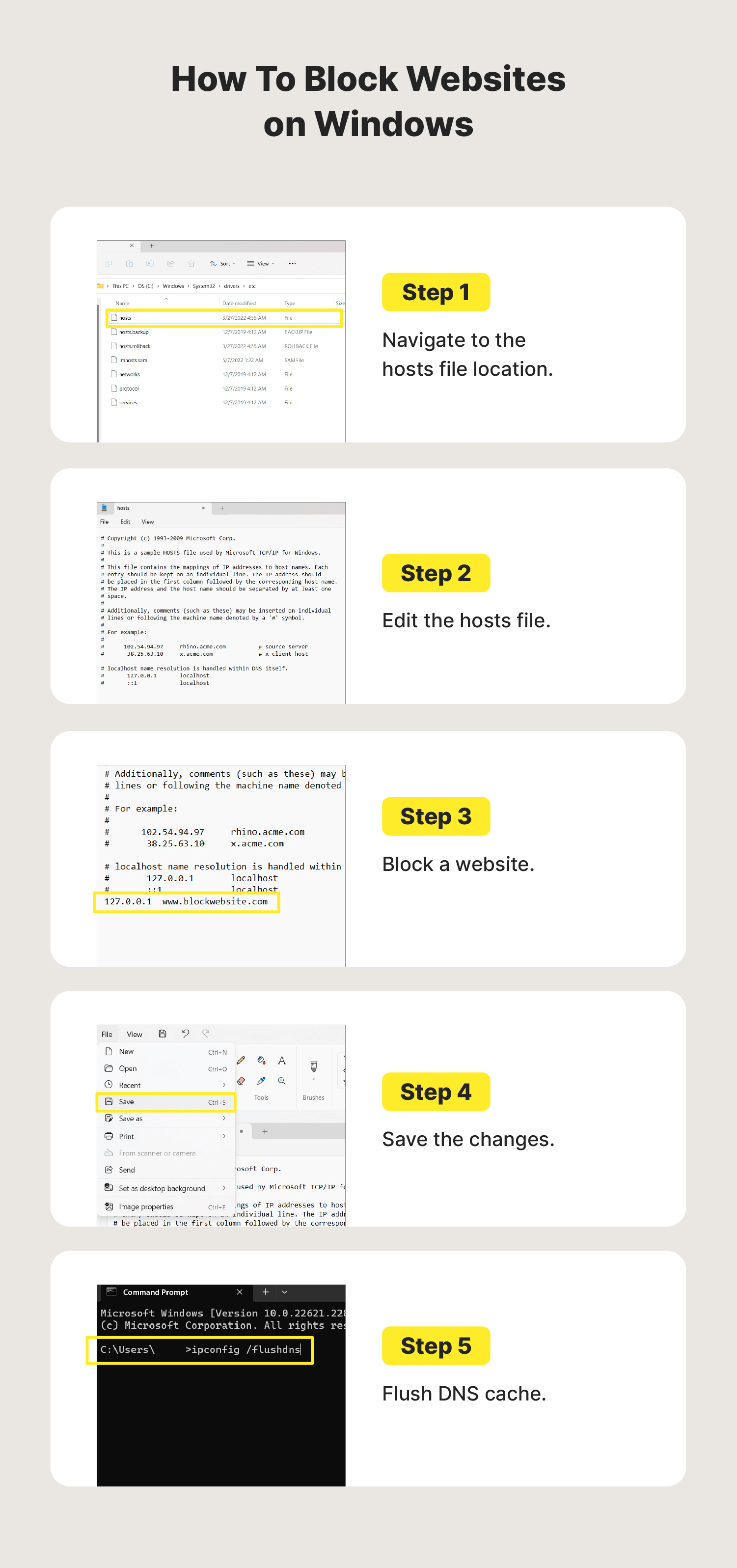
This method involves making changes to your computer's system files. It's more technical and affects only the specific computer you're working on. Be careful, as incorrect edits can cause other network or system issues. This is a powerful way to block unnecessary websites locally.
- On Windows: Navigate to `C:\Windows\System32\drivers\etc` and open the `hosts` file with Notepad (run as administrator). Add a new line for each site in the format `127.0.0.1 [website.com]` (e.g., `127.0.0.1 facebook.com`).
- On Mac: Open Terminal and type `sudo nano /etc/hosts`. Enter your password, then add `127.0.0.1 [website.com]` for each site you want to block. Save and exit (Control+O, Enter, Control+X).
Using Parental Control Software/Features
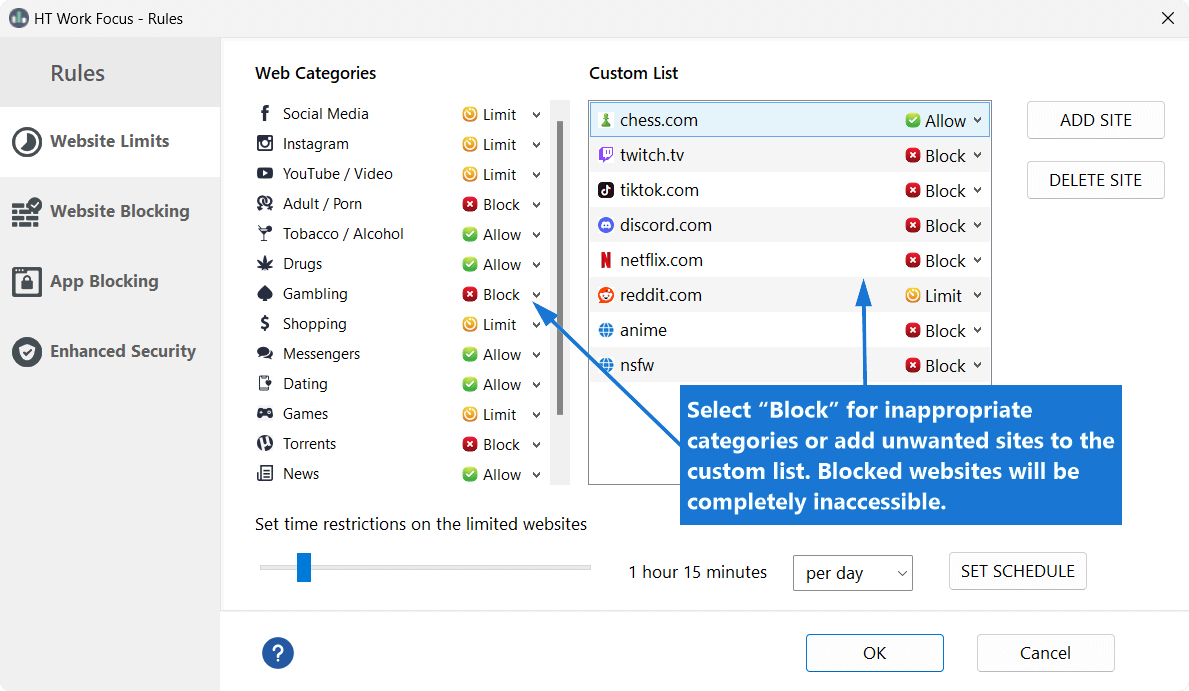
Many operating systems (Windows, macOS) and internet security suites come with built-in parental control features. These often include robust website blocking capabilities, along with time limits and activity monitoring. They offer a comprehensive solution, especially for families looking to control access to various online resources.
Check your system settings or your security software for "Parental Controls" or "Family Safety" options. These tools provide a user-friendly interface to manage web access efficiently and help you block unnecessary websites across multiple profiles.
Conclusion
Taking control of your online environment is easier than you think. Whether you're aiming for better focus, enhanced security, or simply want to declutter your digital life, knowing how to block unnecessary websites is a valuable skill. From quick browser extensions to comprehensive router settings or system-level tweaks, there's a method for everyone. Experiment with these options to find what works best for your specific needs and enjoy a more productive and safer internet experience!
Frequently Asked Questions (FAQ)
- Can I block websites on my phone?
- Yes, most mobile operating systems (iOS and Android) have built-in content restrictions or parental control features. Additionally, many third-party apps are available in app stores that allow you to block specific websites on your mobile device.
- Is blocking permanent?
- No, website blocking is generally reversible. You can usually unblock sites by removing them from your extension's list, reverting host file changes, or adjusting router settings. However, it requires access to the settings you initially used to block them.
- What if I forget the password for blocking?
- If you've set a password for a browser extension or router settings and forgotten it, you might need to consult the extension's support documentation for recovery options or perform a factory reset on your router (which will reset all settings, including your Wi-Fi password).
- Will blocking websites slow down my internet?
- No, blocking websites generally does not slow down your internet speed. In fact, by preventing access to distracting or resource-intensive sites, it might even marginally improve your browsing experience by reducing unnecessary data loading and improving bandwidth allocation.
How To Block Unnecessary Websites
How To Block Unnecessary Websites Wallpapers
Collection of how to block unnecessary websites wallpapers for your desktop and mobile devices.

Serene How To Block Unnecessary Websites Capture in HD
Transform your screen with this vivid how to block unnecessary websites artwork, a true masterpiece of digital design.

Breathtaking How To Block Unnecessary Websites Design for Mobile
Transform your screen with this vivid how to block unnecessary websites artwork, a true masterpiece of digital design.

Breathtaking How To Block Unnecessary Websites Picture Nature
Discover an amazing how to block unnecessary websites background image, ideal for personalizing your devices with vibrant colors and intricate designs.
Stunning How To Block Unnecessary Websites Wallpaper Illustration
Immerse yourself in the stunning details of this beautiful how to block unnecessary websites wallpaper, designed for a captivating visual experience.

Mesmerizing How To Block Unnecessary Websites Abstract for Mobile
Transform your screen with this vivid how to block unnecessary websites artwork, a true masterpiece of digital design.
Serene How To Block Unnecessary Websites Design Art
Transform your screen with this vivid how to block unnecessary websites artwork, a true masterpiece of digital design.

Gorgeous How To Block Unnecessary Websites Design for Your Screen
A captivating how to block unnecessary websites scene that brings tranquility and beauty to any device.

Breathtaking How To Block Unnecessary Websites Photo for Desktop
Experience the crisp clarity of this stunning how to block unnecessary websites image, available in high resolution for all your screens.

Stunning How To Block Unnecessary Websites Design for Your Screen
This gorgeous how to block unnecessary websites photo offers a breathtaking view, making it a perfect choice for your next wallpaper.

Captivating How To Block Unnecessary Websites Capture Collection
A captivating how to block unnecessary websites scene that brings tranquility and beauty to any device.

Artistic How To Block Unnecessary Websites Moment for Your Screen
A captivating how to block unnecessary websites scene that brings tranquility and beauty to any device.

Serene How To Block Unnecessary Websites Artwork Art
Discover an amazing how to block unnecessary websites background image, ideal for personalizing your devices with vibrant colors and intricate designs.
Spectacular How To Block Unnecessary Websites Moment for Mobile
A captivating how to block unnecessary websites scene that brings tranquility and beauty to any device.

Stunning How To Block Unnecessary Websites Abstract Nature
This gorgeous how to block unnecessary websites photo offers a breathtaking view, making it a perfect choice for your next wallpaper.

Gorgeous How To Block Unnecessary Websites View Concept
This gorgeous how to block unnecessary websites photo offers a breathtaking view, making it a perfect choice for your next wallpaper.
High-Quality How To Block Unnecessary Websites Scene Concept
Experience the crisp clarity of this stunning how to block unnecessary websites image, available in high resolution for all your screens.

High-Quality How To Block Unnecessary Websites Abstract Collection
Discover an amazing how to block unnecessary websites background image, ideal for personalizing your devices with vibrant colors and intricate designs.

Spectacular How To Block Unnecessary Websites Moment for Mobile
Immerse yourself in the stunning details of this beautiful how to block unnecessary websites wallpaper, designed for a captivating visual experience.

Captivating How To Block Unnecessary Websites Wallpaper in 4K
Immerse yourself in the stunning details of this beautiful how to block unnecessary websites wallpaper, designed for a captivating visual experience.

Artistic How To Block Unnecessary Websites Abstract in HD
This gorgeous how to block unnecessary websites photo offers a breathtaking view, making it a perfect choice for your next wallpaper.
Download these how to block unnecessary websites wallpapers for free and use them on your desktop or mobile devices.